
Brightcove Global Services | Last updated: September 2026 | Version 1.2.0.0
1. Introduction
This guide explains how to use the Brightcove M365 Connector for SharePoint after it has been installed and configured by your administrator. If the connector is not yet installed, refer to the companion Installation Guide first.
1.1 What is the Brightcove M365 Connector?
The Brightcove M365 Connector allows SharePoint Online users to embed and manage Brightcove Video Cloud content directly within modern SharePoint pages. It consists of:
- Three authoring web parts (available in the SharePoint toolbox when editing a page): Brightcove Video, Brightcove Playlist, and Brightcove Experience (In-Page Experience / IPX).
- Connector Settings page: An admin page for configuring the proxy connection and managing Brightcove account credentials.
- Content Management page: A page for uploading videos, managing your video library, and creating and managing playlists without leaving SharePoint.
1.2 Who is this guide for?
- Site Owners and Editors who want to embed Brightcove content on SharePoint pages.
- Site Admins who manage Brightcove account credentials and connector settings for their site.
- Content Managers who upload, edit, organize, and delete videos and manage playlists from within SharePoint.
1.3 Prerequisites
Before using the connector, ensure:
- The connector has been installed and configured by your SharePoint and Azure admins (see the Installation Guide).
- At least one Brightcove account has been added in the Connector Settings page.
- You have Edit permissions on the SharePoint site where the connector is installed.
2. What's changed: Legacy connector vs. modern connector
Microsoft is retiring the SharePoint Add-In framework used by the legacy Brightcove SharePoint Connector (version 4.1.2.0). The legacy connector will stop working in SharePoint Online (M365) on April 2, 2026. No workaround will be available after this date.
The new Brightcove M365 Connector (v1.x) is built on the SharePoint Framework (SPFx), which is the Microsoft-recommended replacement for SharePoint Add-Ins. This section helps customers migrating from the legacy connector understand the differences.
2.1 Architecture changes
| Aspect | Legacy Connector (4.1.2.0) | Modern Connector (1.x) |
|---|---|---|
| Framework | SharePoint Add-In model | SharePoint Framework (SPFx) |
| SharePoint Online support | Stops working April 2, 2026 | Fully supported |
| SharePoint On-premises | Supported (2013, 2016, 2019) | Not supported in this release |
| Credential security | API credentials stored client-side in SharePoint | Credentials stored server-side in Azure Key Vault |
| Azure dependency | None | Requires Azure account |
| Distribution | Open-source on GitHub | Distributed directly by Brightcove as compiled packages |
| Source code | Available (Apache 2.0 license) | Not distributed |
2.2 Feature comparison
| Feature | Legacy | Modern (v1.2.0.0) |
|---|---|---|
| Embedding | ||
| Embed single video | ✅ | ✅ |
| Embed playlist | ✅ | ✅ |
| Embed In-Page Experience (IPX) | ✅ | ✅ |
| Player playback options (autoplay, mute) | ❌ | ✅ |
| Player controls (seek, fullscreen, PiP, control bar size) | ❌ | ✅ |
| Player sizing (responsive/fixed, aspect ratio) | ❌ | ✅ |
| Classic SharePoint UI support | ✅ | ❌ Modern pages only |
| Video Management | ||
| Upload videos | ✅ | ✅ |
| Upload via URL | ❌ | ✅ |
| Auto-generate captions (Autocaption) | ❌ | ✅ |
| Edit video details (name, descriptions, tags, reference ID, folder, status) | ✅ | ✅ |
| Edit video custom fields | ✅ | ✅ |
| Edit video poster and thumbnail images | ✅ | 🔜 Planned for future release |
| Add/manage text tracks (captions, subtitles) | ✅ | ⚠️ Replaced by Autocaption |
| Delete videos from SharePoint | ❌ | ✅ (Videos tab) |
| Playlist & Experience Management | ||
| Create and manage playlists (manual and smart) | ✅ | ✅ |
| Manage experiences from SharePoint | ✅ (view only) | 🔜 Planned for future release |
| Administration | ||
| Multiple Brightcove accounts | ✅ | ✅ |
| SharePoint group-based access control (Authors/Viewers) | ✅ | ❌ (uses SharePoint site permissions) |
| Cross-tenant support (Azure ≠ SP tenant) | N/A | ✅ |
| Connection test and diagnostics | ❌ | ✅ |
| M365 App Support | ||
| Teams | ✅ | 🔜 Planned for future release |
| Viva | ❌ | 🔜 Planned for future release |
2.3 What SharePoint Online customers need to do
- Migrate to the new SPFx-based connector before April 2, 2026.
- Contact your Brightcove Account Manager to receive the new version.
- Follow the Installation Guide to deploy the connector.
- Add the new Brightcove web parts to your pages and configure them with your content. While existing Brightcove content that was previously embedded via the legacy Add-In may continue to render on pages independently of the Add-In framework, Microsoft has not provided clear guidance on whether all previously placed content will remain unaffected after the retirement date. Customers should consult with their Microsoft representative or review Microsoft's SharePoint Add-In retirement documentation to understand the full impact on their environment. Brightcove cannot guarantee the continued rendering of content placed by the legacy connector after April 2, 2026.
2.4 SharePoint On-premises customers
Customers running SharePoint Server (on-premises or self-hosted) are not immediately impacted by the Add-In retirement. Existing legacy connector versions may continue to function on on-premises environments. However, Brightcove recommends planning for migration as support for the legacy connector will eventually end.
3. Connector Settings (Admin)
The Connector Settings page is where site admins configure the connection to the Proxy API and manage Brightcove account credentials. This page is provisioned automatically when the app is added to a site and is located at Site Pages → BrightcoveConnectorSettings.aspx.
3.1 Proxy Configuration tab
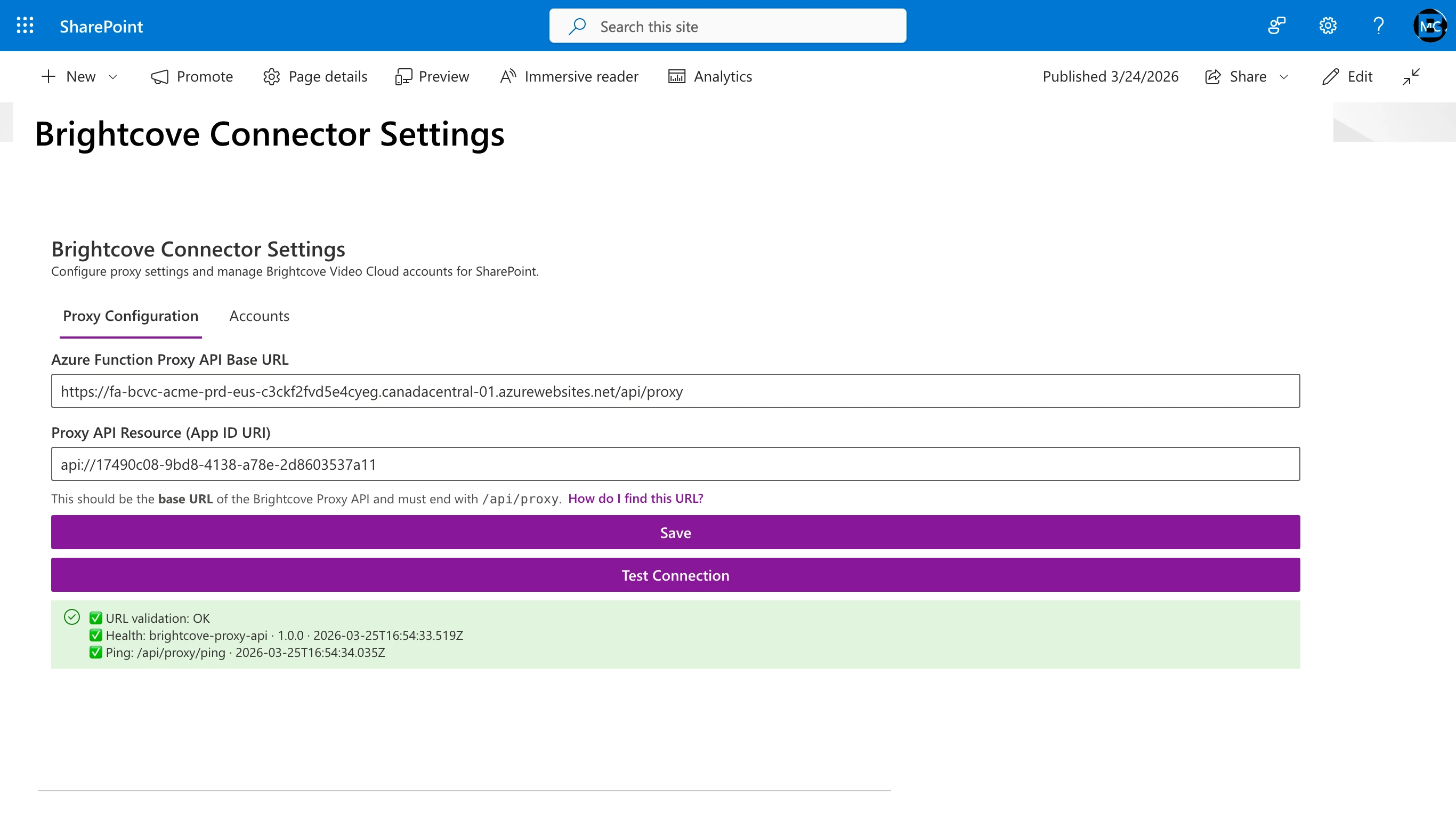
This tab configures the connection between SharePoint and the Azure-hosted Proxy API.
Fields:
| Field | Description | Example |
|---|---|---|
| Proxy API Base URL | The full URL to the proxy endpoint on your Azure Function App. | https://fa-bcvc-acme-prd-eus.azurewebsites.net/api/proxy |
| Proxy API Resource | The Application ID URI from the Azure App Registration's "Expose an API" setting. | api://4f382046-2164-45ef-b217-7ed4a8b261dd |
After entering values, click Save and then Test Connection to verify. Both buttons stay disabled while the saved settings are loading, while either field is empty, and while either field shows a validation error.
Test Connection performs two checks:
- Health check: Confirms the Function App is reachable by calling the public
/api/healthendpoint. - Authenticated ping: Acquires an OAuth token from Microsoft Entra ID and calls the protected
/api/proxy/pingendpoint to verify end-to-end authentication.
If both checks pass, you'll see a success status with the proxy version and timestamp.
If either check fails, use the Copy Support Bundle button to capture diagnostic details (proxy URL, HTTP status codes, error messages, browser user-agent) for sharing with your Azure admin or Brightcove support.
3.2 Accounts tab
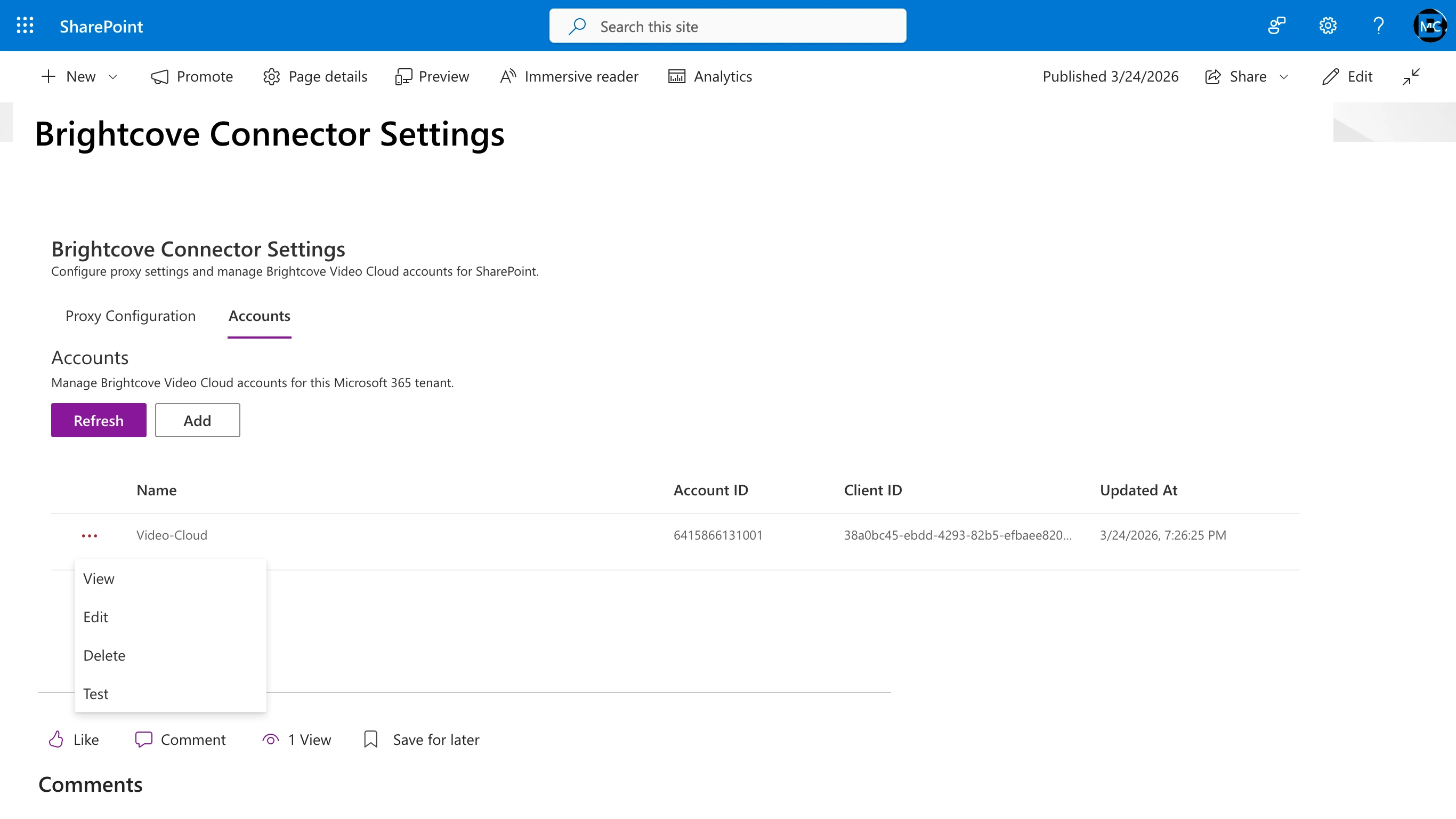
This tab manages the Brightcove Video Cloud accounts that are available to authors on this site.
Adding an account:
- Click Add.
- Fill in the fields:
- Name: A friendly label (alphanumeric and hyphens only, 4–64 characters, must start and end with a letter or number).
- Account ID: Your numeric Brightcove Account ID.
- Client ID: The Brightcove API Client ID.
- Client Secret: The Brightcove API Client Secret.
- Click Test and Save to validate the credentials with Brightcove and save the account.
Editing an account:
Click the edit icon on an existing account row. You can update the name, account ID, or client ID/secret. The client secret field shows as empty when editing; leave it blank to keep the existing secret, or enter a new value to update it.
Deleting an account:
Click the delete icon and confirm. This removes the account credentials from the Azure Key Vault. Any web parts on pages that reference this account will show an error until reconfigured.
Testing an account:
Click the Test button on an existing account to verify the stored credentials can still authenticate with Brightcove. This is useful for diagnosing issues when API credentials have been rotated in Video Cloud Studio.
4. Content Management
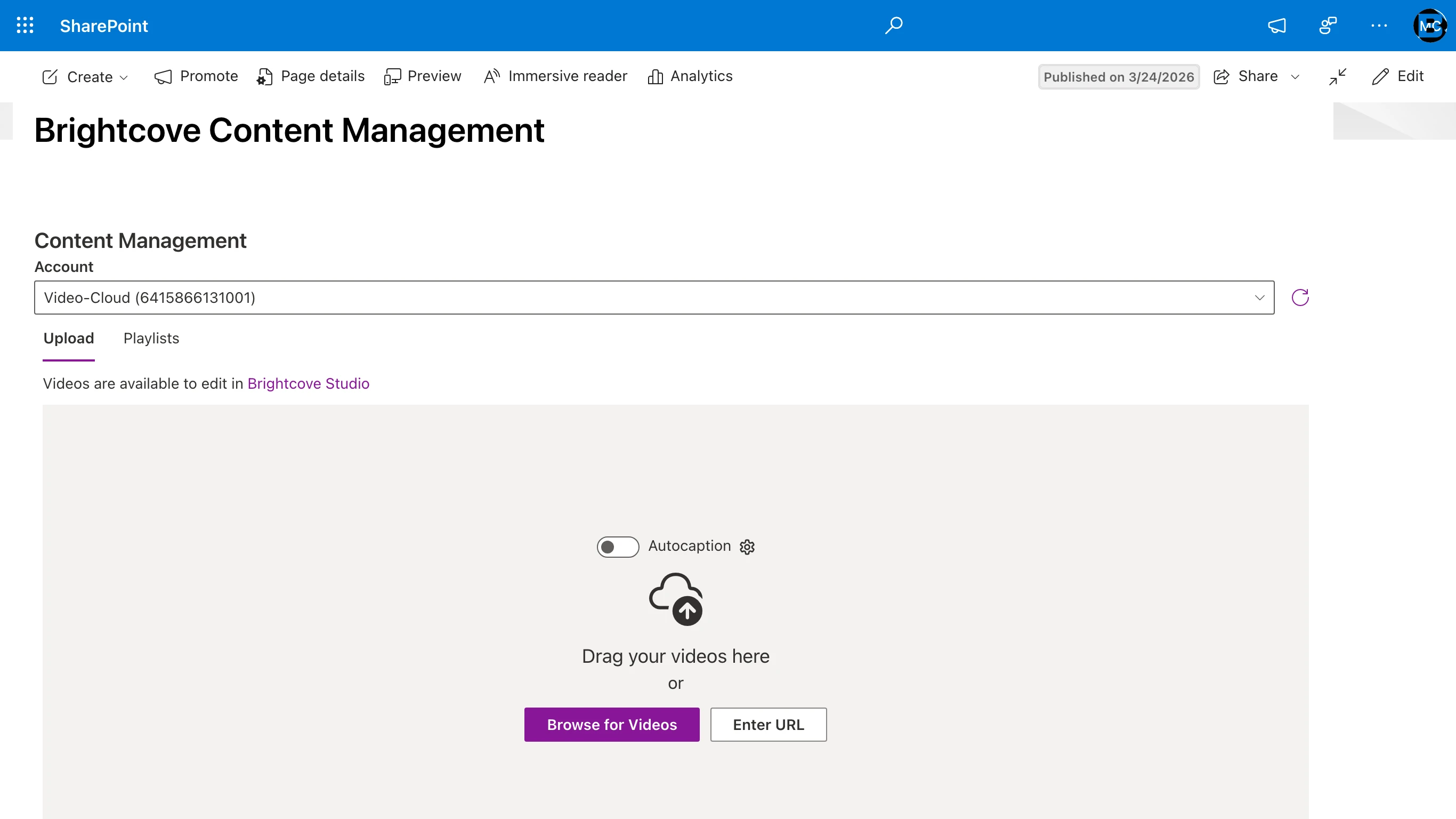
The Content Management page allows you to upload videos, manage your video library, manage playlists, and edit content metadata directly from SharePoint without needing to switch to Brightcove Video Cloud Studio. The page is organized into three tabs: Upload for ingesting new videos, Videos for finding, editing, and deleting videos that are already in your account, and Playlists for creating and managing playlists.
Where: Site → Site Pages → BrightcoveContentManagement.aspx
4.1 Selecting an account
At the top of the page, select the Brightcove account you want to work with from the Account dropdown. The dropdown shows all accounts configured in Connector Settings. After selecting an account, the page will load the video library for that account.
4.2 Uploading videos
- Select the target Brightcove account from the dropdown.
- Click Upload.
- You'll see an upload area with three options:
- Drag and drop one or more video files directly onto the upload area.
- Click Browse for Videos to select files from your computer.
- Click Enter URL to provide a URL to a hosted video file.
Only video files are accepted: MP4, MOV, M4V, MKV, WMV, AVI, MPG, MPEG, FLV, and WebM. If you drop or browse to a file of another type, it is not added and a message above the upload area names the rejected file.
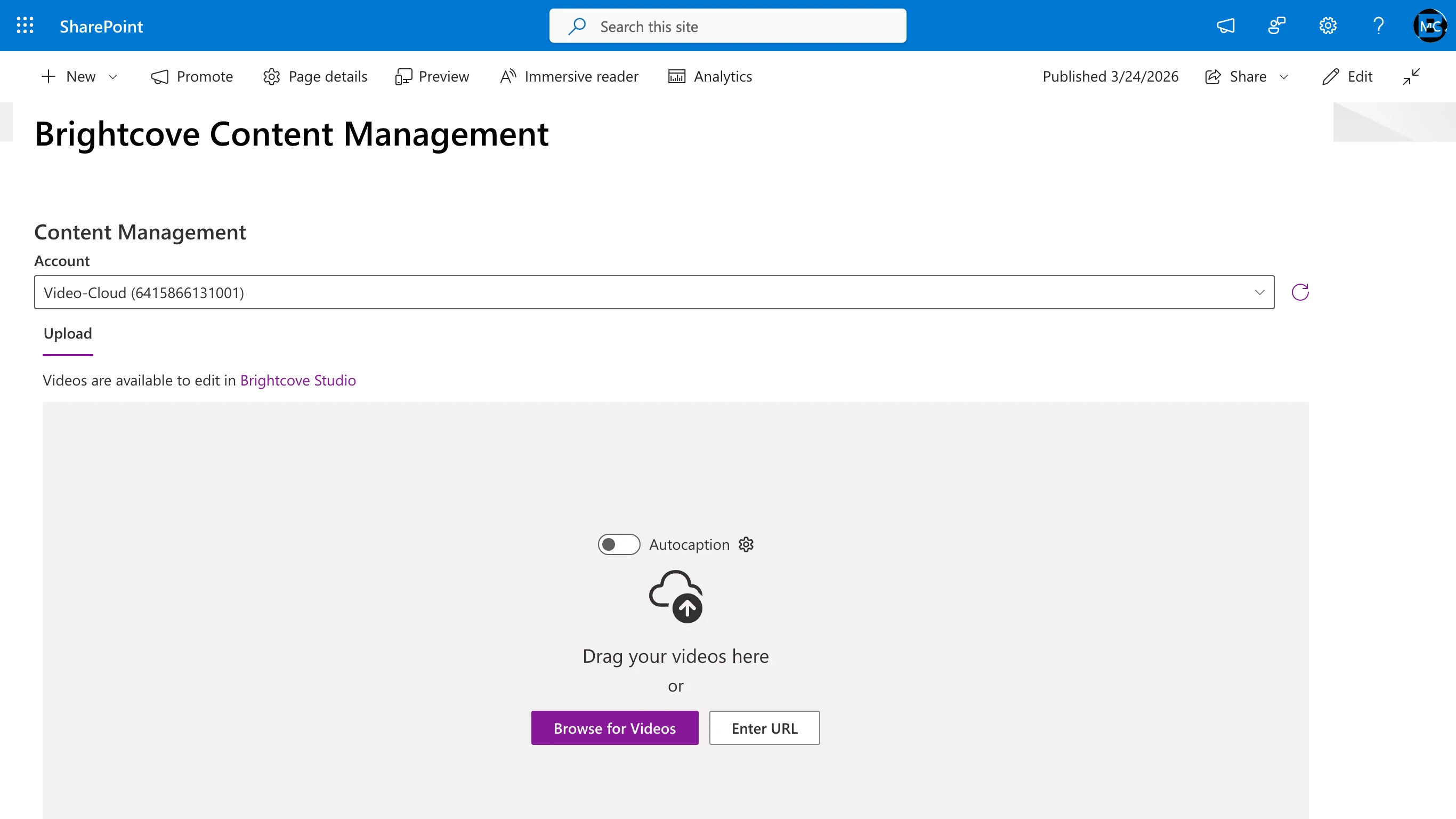
- Optionally, toggle Autocaption on before uploading to have Brightcove automatically generate captions for the uploaded video. Click the settings icon next to the toggle to configure the caption language (defaults to Auto-detect), add an optional label, and enable a custom dictionary for improved accuracy with specialized terminology. For more details on auto captioning, see Generating Captions for Videos in the Brightcove documentation.
- Upload begins immediately once files are added. Each video will appear as a processing card showing the filename, a progress bar, the assigned Video ID, and the source file name. A thumbnail appears on the card once Brightcove has generated one. The status message will indicate that the video is being ingested and renditions are being created.
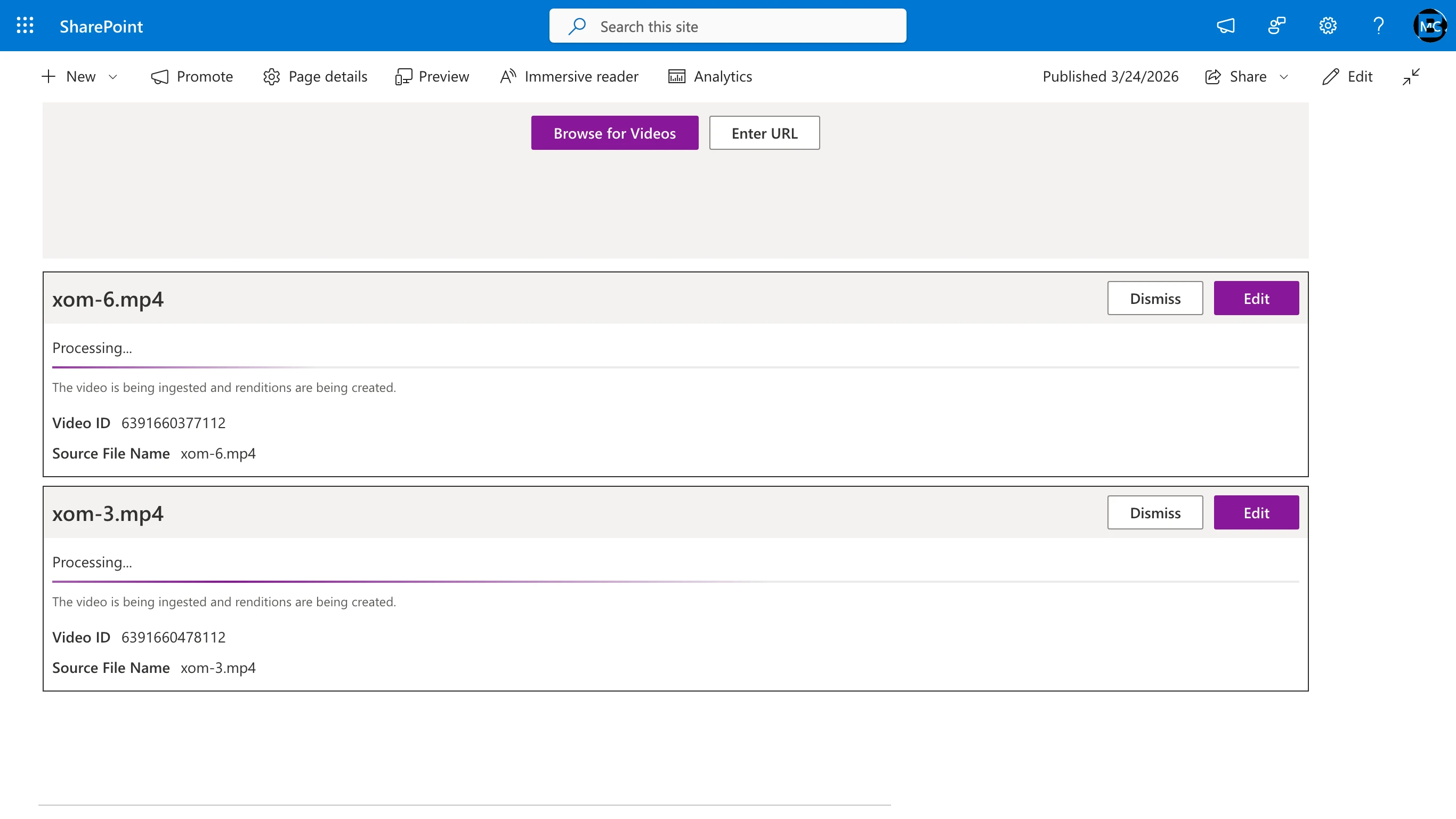
- While a video is processing, click the Edit button on its card to set the video details:
- Name (defaults to the filename)
- Short Description (optional)
- Tags (optional)
- Reference ID (optional)
- Folder (optional): shows the video's current folder. Select a different Video Cloud folder to move the video, or No folder to remove it from its folder.
- Status (Active / Inactive)
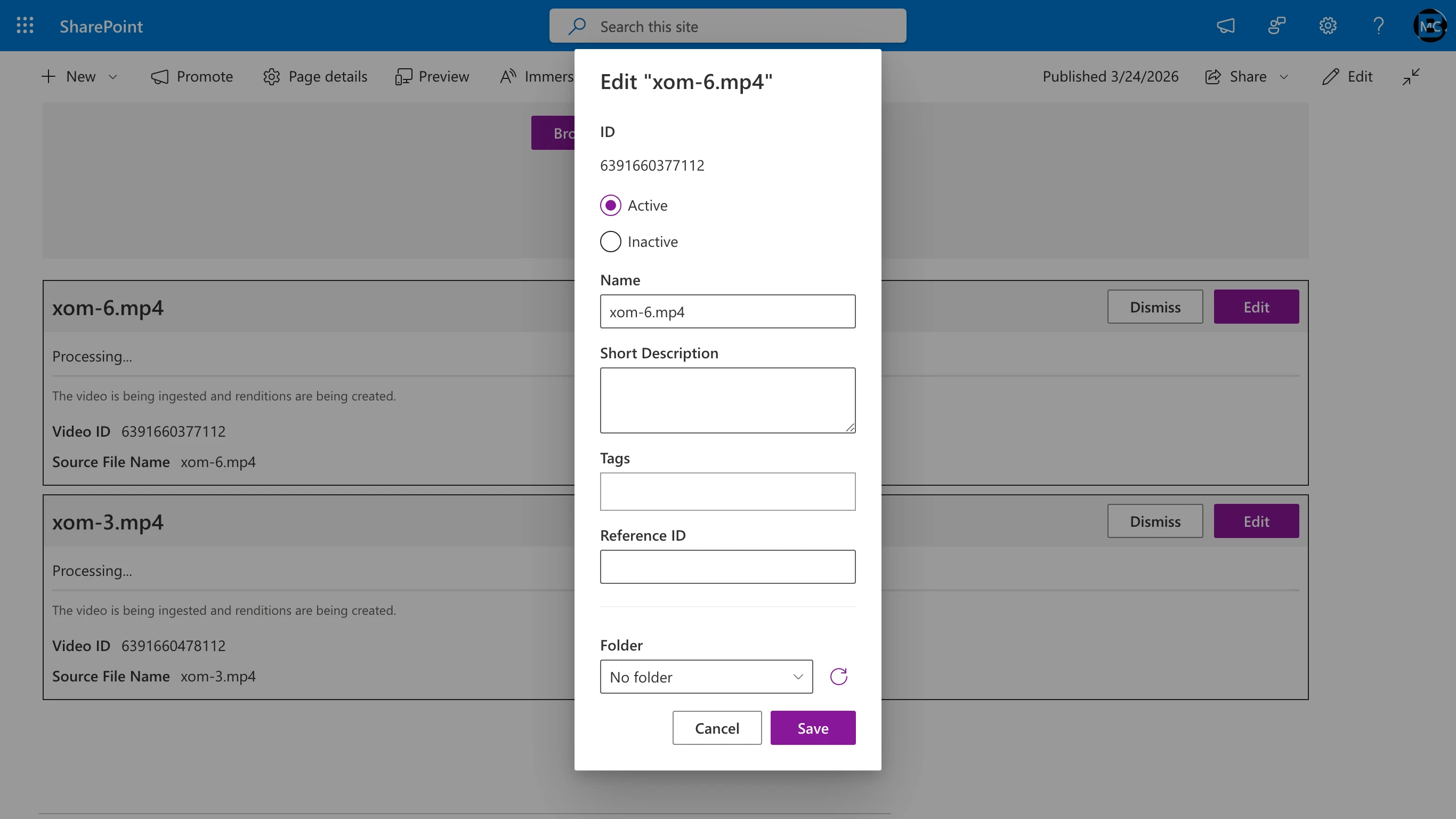
- Click Save in the edit dialog to apply your changes, or Cancel to close without saving. You can also click Dismiss on a processing card to remove it from the list (this does not cancel the upload).
4.3 Managing videos
The Videos tab lists every video in the selected Brightcove account and lets you find, edit, preview, and delete videos without leaving SharePoint. Use the Upload tab to ingest new videos, and the Videos tab to work with videos that already exist in Video Cloud, including uploads from earlier sessions.
Each row shows:
- #: The row's position in the current list.
- A thumbnail with the video's duration.
- Name: Click to open the Edit Video dialog.
- Status: A green check for Active, a red icon for Inactive, or Processing while Brightcove is still ingesting the video.
- Reference ID, Tags (with a +N indicator when there are more tags than fit), and Folder.
- Created and Modified dates.
- Preview: Opens the video in a new browser tab.
A status line above the list shows how many videos match, for example 124 items, 12 results when a search is active, or 2 selected · 124 items when rows are checked. The list loads more rows automatically as you scroll. Videos that are still processing are refreshed every few seconds until ingestion completes, so their status changes to Active without reloading the page.
4.3.1 Finding videos
- Search: Type a video name or ID and press Enter. Results match the name, ID, reference ID, description, and tags. Search matches whole words, so launch finds Product launch 2026 but Exxon does not find ExxonMobil. Clear the search box to return to the full list.
- Folder: Choose a Video Cloud folder from the dropdown to show only the videos in that folder. All videos (the default) removes the filter. If you search while a folder is selected, the search applies within that folder.
- Sort: Click the Name, Created, or Modified column header to sort; click again to reverse the order. The default order is newest first. Sorting is not available while a folder is selected.
4.3.2 Editing a video
Click a video's name to open the Edit Video dialog.
The Overview tab contains:
- ID (read-only)
- Status: Active or Inactive
- Name
- Reference ID: Must be unique within the account. If another video already uses the value, the dialog shows A video with this reference ID already exists in the account and keeps your other changes so you can correct it.
- Short description and Long description
- Tags
- Folder: Shows the video's current folder. Select a different folder to move the video, or No folder to remove it from its folder. A move removes the video from the old folder and adds it to the new one in a single save.
Each text field shows a counter in its top-right corner (for example 42 / 255) and stops accepting input at the limit. The Tags counter counts tags, not characters.
The Custom Fields tab appears when the account has custom fields defined in Video Cloud Studio. Fields with a fixed list of values are shown as dropdowns; free-text fields are shown as text boxes with a character counter. Required fields are marked and must have a value before you can save.
Click Save to apply your changes or Cancel to close without saving. Changes are written to Video Cloud immediately.
4.3.3 Previewing a video
Click the Preview icon at the end of a row to open the video in a new browser tab.
4.3.4 Deleting videos
Select one or more videos using the checkboxes, then click Delete. Confirm in the Delete Videos dialog. The videos are removed from your Brightcove account and disappear from the list immediately.
4.4 Managing playlists
The Playlists tab provides full create, edit, and delete capabilities for both manual and smart Brightcove playlists. Changes sync to Video Cloud immediately and are reflected in the Brightcove Playlist web part wherever it's embedded.
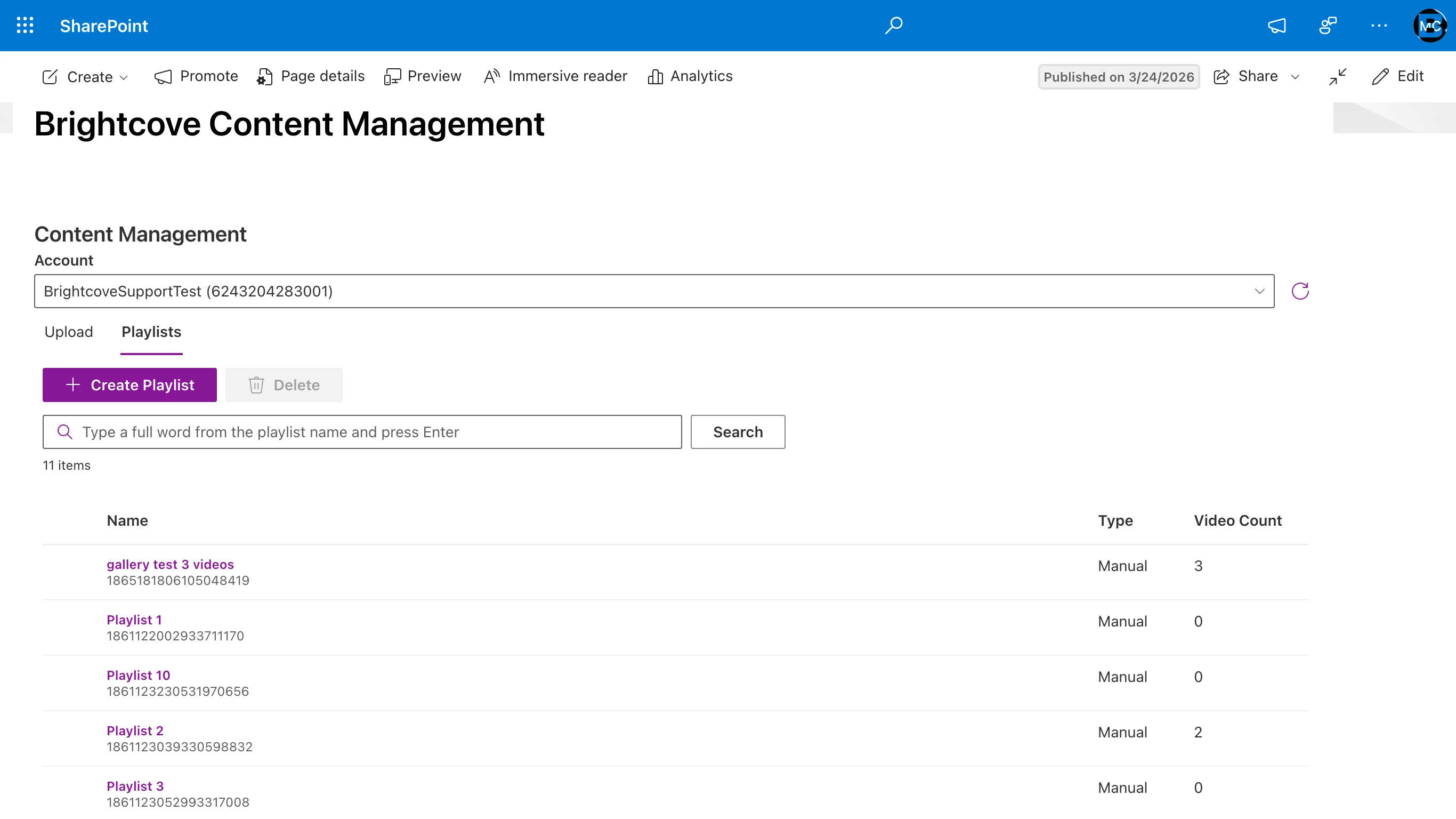
The playlist list shows existing playlists for the selected Brightcove account with three columns:
- Name: The playlist name. Click to open the playlist's settings dialog.
- Type: Manual or Smart.
- Video Count: Number of videos in the playlist. Manual playlists show a number; smart playlists display
---because their video count is dynamic.
The list defaults to sorting by name ascending. Use the search box to filter the list: type all or part of a playlist name, or a playlist ID, and press Enter. The filter is applied instantly in the browser. Clear the box to show all playlists again.
4.4.1 Creating a playlist
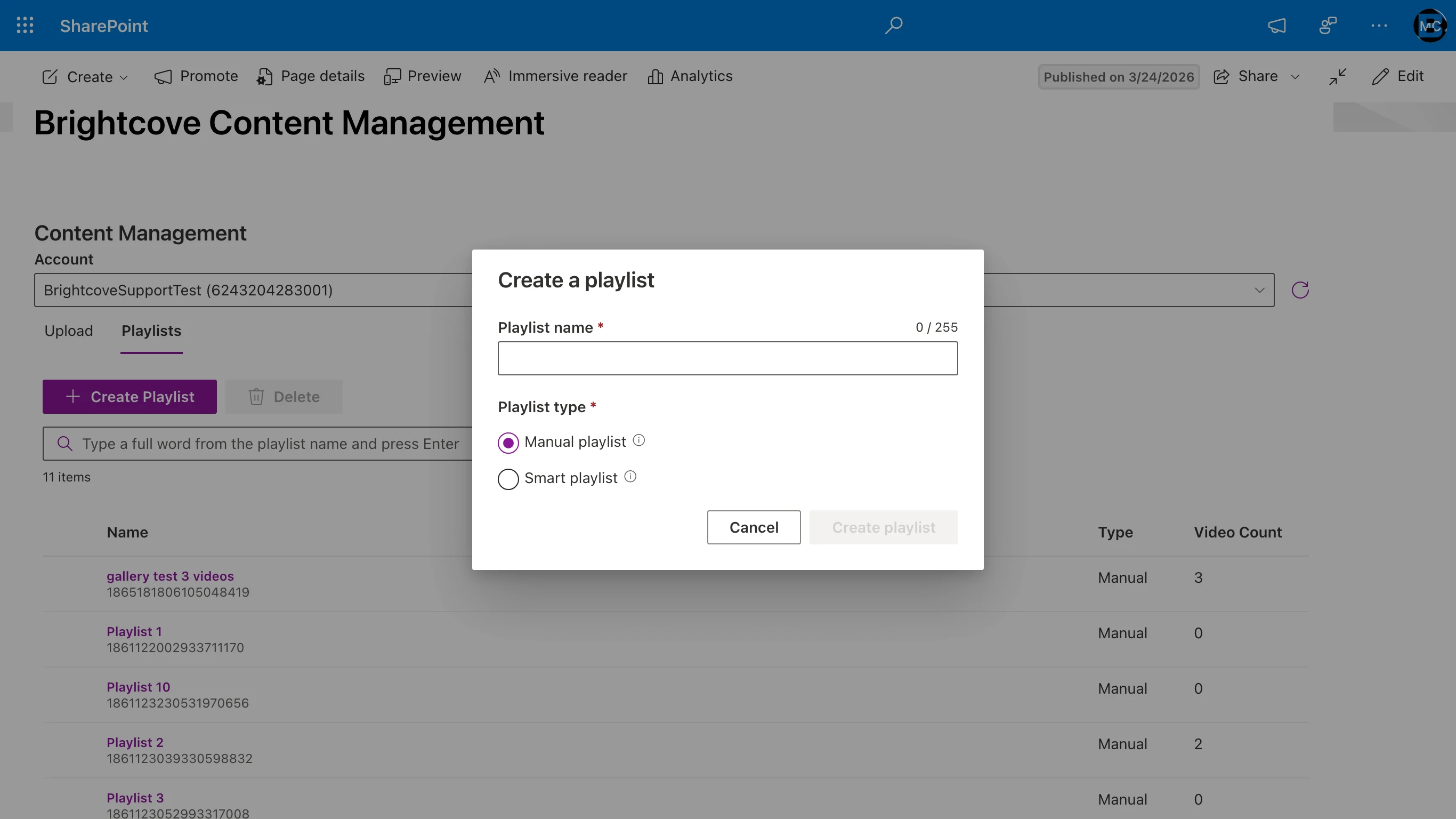
- Click Create Playlist.
- In the dialog, enter a Playlist name (up to 255 characters) and choose a Playlist type:
- Manual playlist: You explicitly select which videos appear in the playlist and control their order.
- Smart playlist: Videos are matched dynamically based on parameters you define (tags, name, date, etc.).
- Click Create playlist to save and open the new playlist's settings dialog for further configuration.
4.4.2 Editing a manual playlist
Click a playlist name in the list to open the Playlist settings dialog. Manual playlists have two tabs: Overview and Videos.
The Overview tab lets you edit the playlist's name, reference ID, and description. The Type and ID fields are read-only.

The Videos tab lists the videos in the playlist with controls to reorder, remove, or open each video in Studio. Click Add more videos to insert additional videos at the end of the playlist.
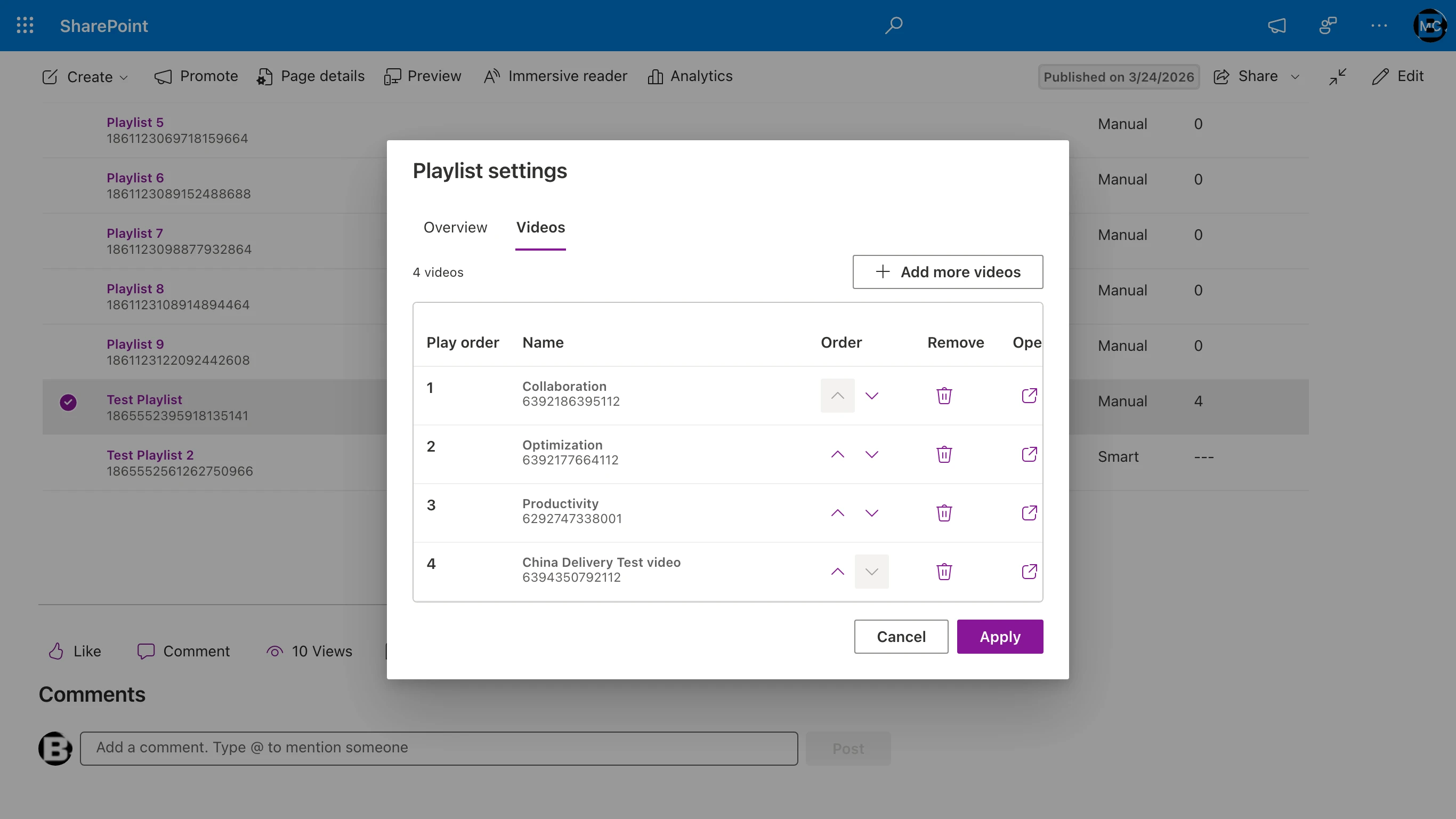
- Play order: The numeric playback position. Use the up/down arrows in the Order column to move a video earlier or later in the playlist.
- Remove: Removes the video from this playlist. The video itself remains in your Brightcove account.
- Open: Opens the video in Brightcove Studio in a new tab.
Click Apply to commit your changes, or Cancel to discard them.
Adding videos. Click Add more videos on the Videos tab to open the add-videos dialog. Videos already in the playlist are filtered out automatically so you don't add duplicates.
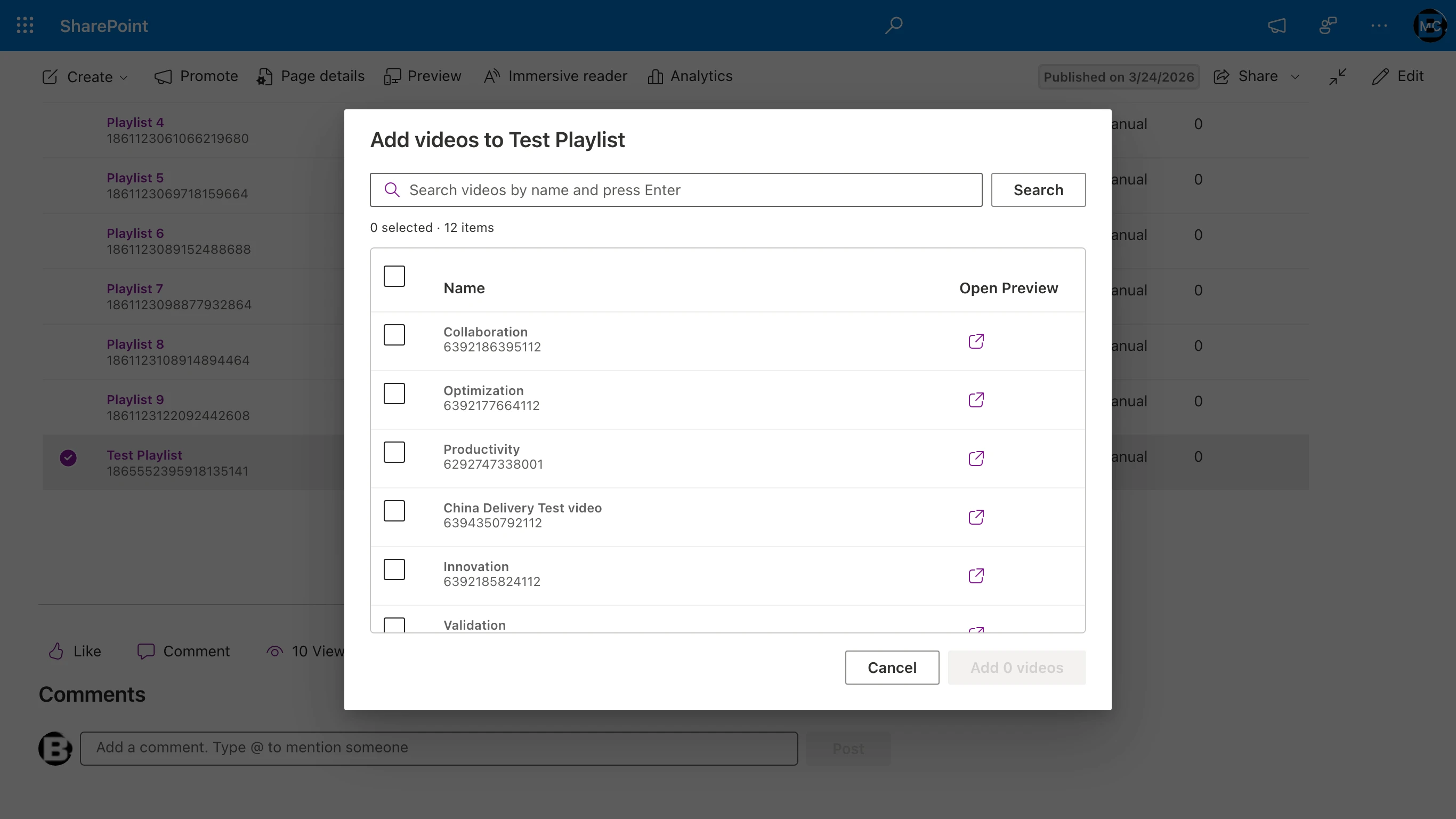
- Type a video name or ID and press Enter to search. Results match the name, ID, reference ID, description, and tags on whole words (see Section 4.3.1).
- Choose a Folder to limit the list to one Video Cloud folder. If you search while a folder is selected, the search applies within that folder.
- Click the Name, Created, or Modified column header to sort. Sorting is unavailable while a folder is selected.
- The list loads more videos as you scroll, and the status line shows how many videos are available to add. Videos already in the playlist are excluded from the list and the count.
- Check one or more videos in the list, then click Add N videos to append your selection to the end of the playlist.
4.4.3 Editing a smart playlist
Smart playlists have three tabs: Smart, Overview, and Videos.
The Smart tab is where you define the matching criteria. Configure:
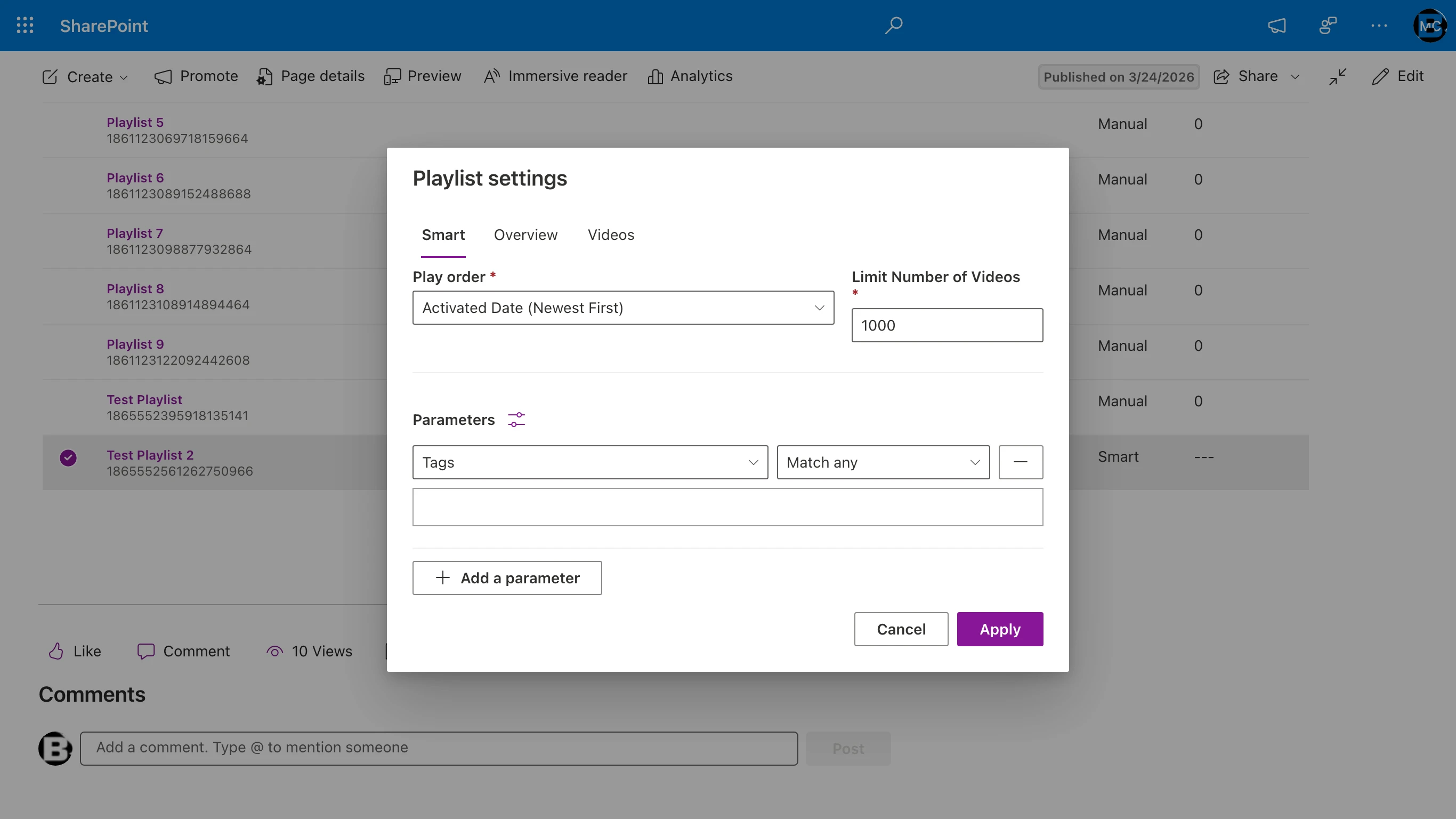
- Play order: The order in which matched videos play. Options include Alphabetical, Activated Date (newest/oldest first), Total Plays, Trailing Week Plays, Start Date (newest/oldest first), and Last Activated Date.
- Limit Number of Videos: The maximum number of videos the playlist returns, from 1 to 1000. New smart playlists default to 100.
- Parameters: One or more criteria that videos must match. Each parameter has a type (Tags, Name, Description, Activated Date, Last Activated Date, Reference ID, etc.) and a value. Click Add a parameter to chain additional criteria.
- Combine parameters: Click the equalizer icon next to the Parameters header to toggle between Match all (a video must satisfy every parameter) and Match any (a video matches if it satisfies any single parameter). This matches Brightcove Studio's smart playlist behavior.
The Videos tab on a smart playlist is read-only: it shows the dynamic result of applying your criteria, with a thumbnail for each video. A human-readable summary of the active criteria appears at the top of the tab, and long results load in pages as you scroll.
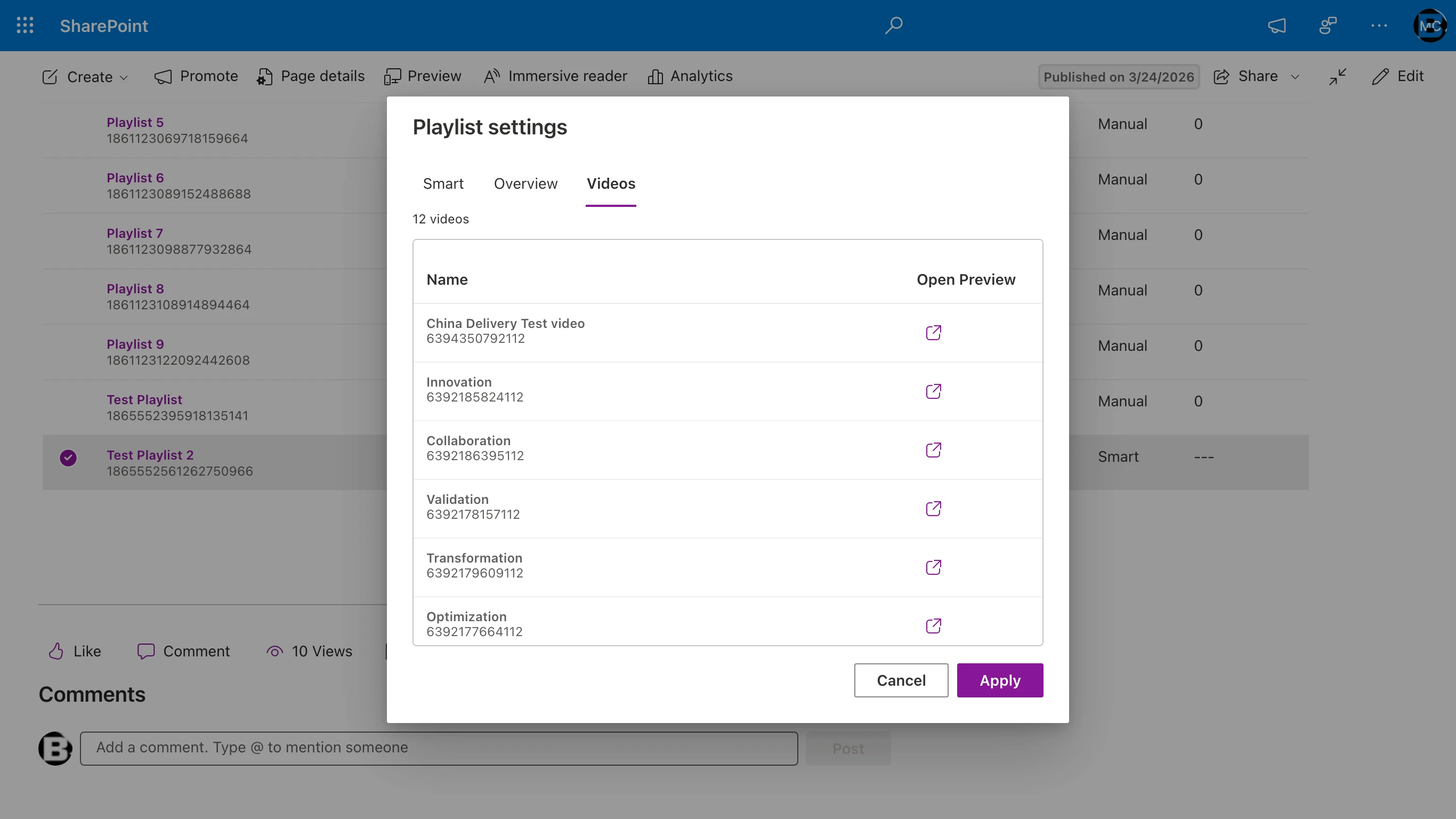
To change which videos appear in a smart playlist, modify the criteria on the Smart tab and click Apply.
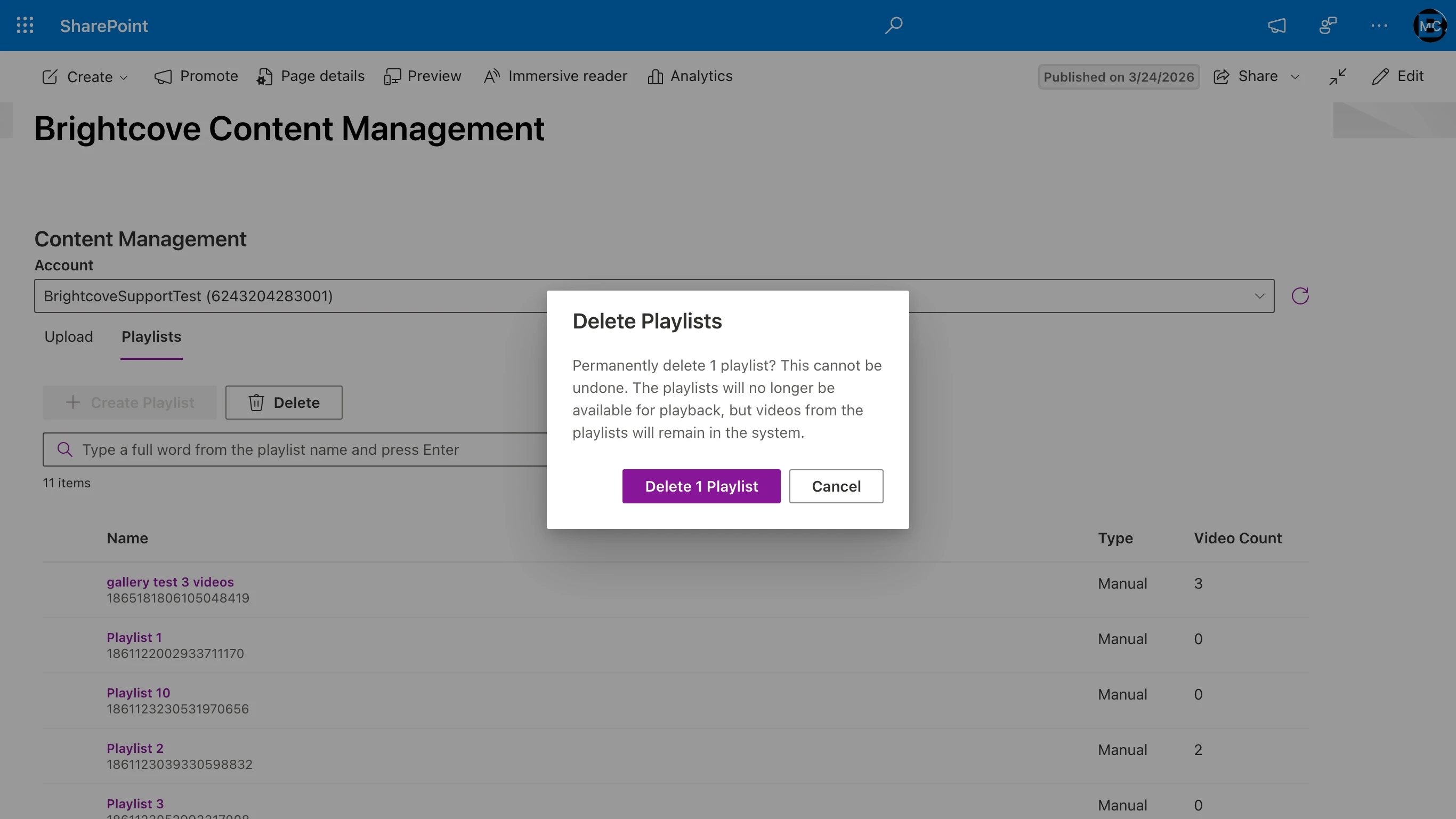
4.4.4 Deleting playlists
To delete a playlist, select it in the list using the checkbox on the left, then click Delete. Confirm the deletion in the dialog.
4.5 Limitations in this release
The following content management features are not available from SharePoint in this release. Use Brightcove Video Cloud Studio for them:
- Creating and managing In-Page Experiences and Embed Builder experiences
- Editing video poster and thumbnail images
- Adding text tracks other than Autocaption during upload
- Assigning a folder to many uploads at once (set the folder per video in the Edit Video dialog)
5. Embedding content with web parts
The connector provides three web parts for embedding Brightcove content on SharePoint pages. All three are available in the SharePoint web part toolbox when editing a modern page.
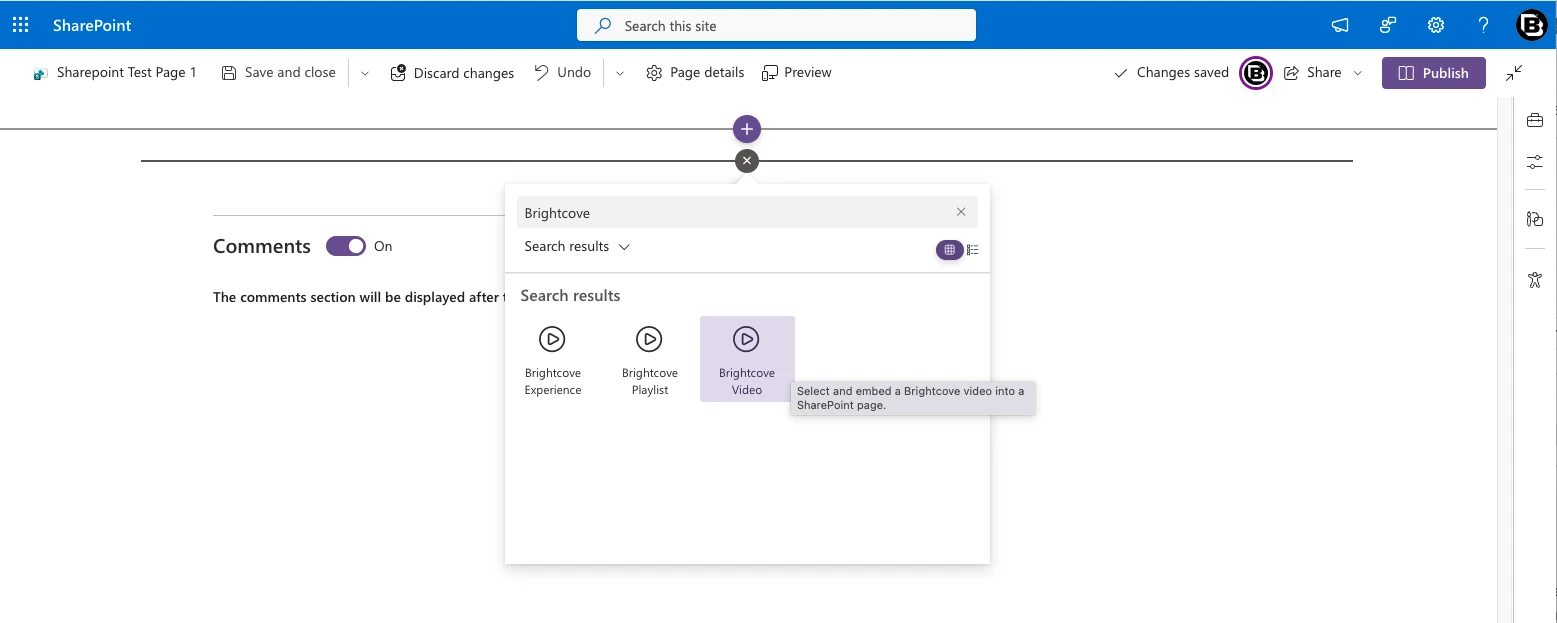
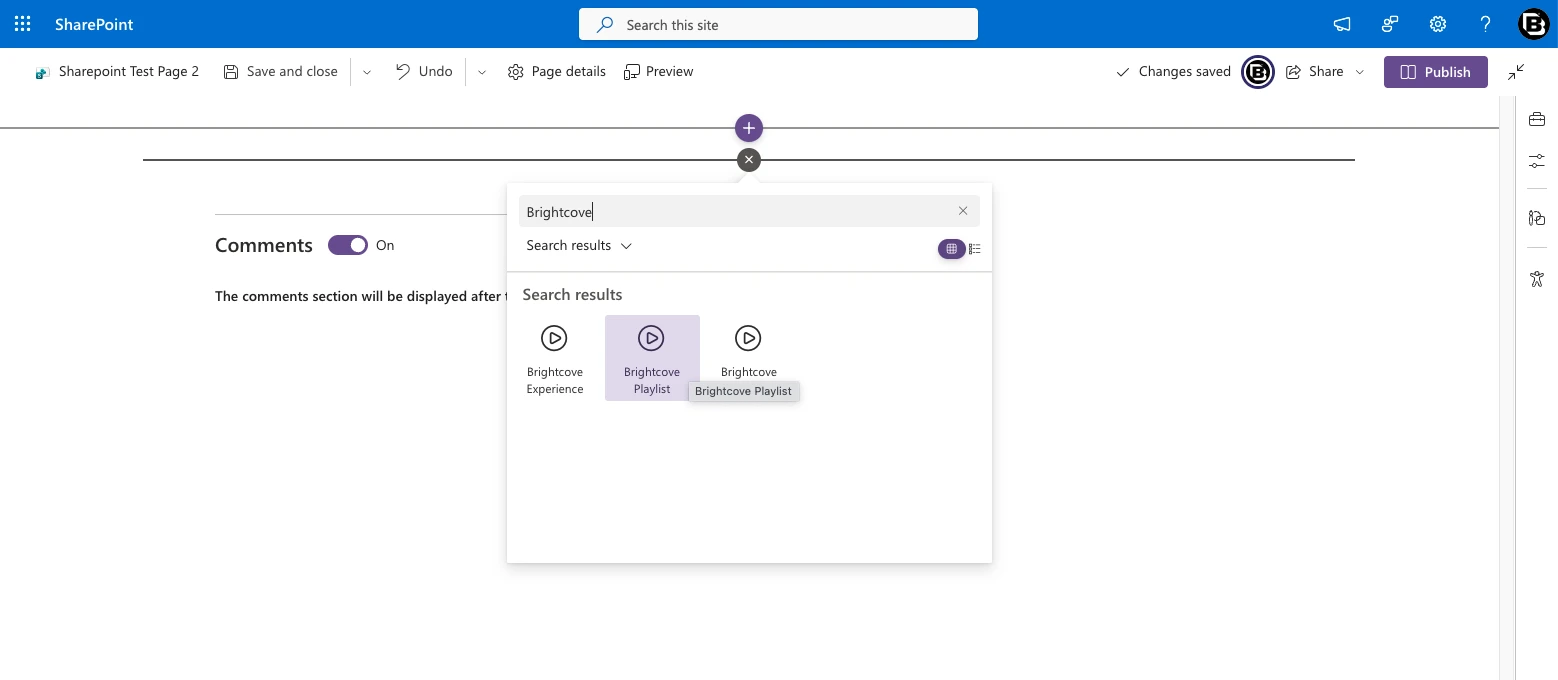
5.1 How to add a Brightcove web part
- Navigate to a SharePoint page and click Edit.
- Click the + icon where you want to add the web part.
- In the toolbox search bar, type Brightcove.
- Select the web part you want: Brightcove Video, Brightcove Playlist, or Brightcove Experience.
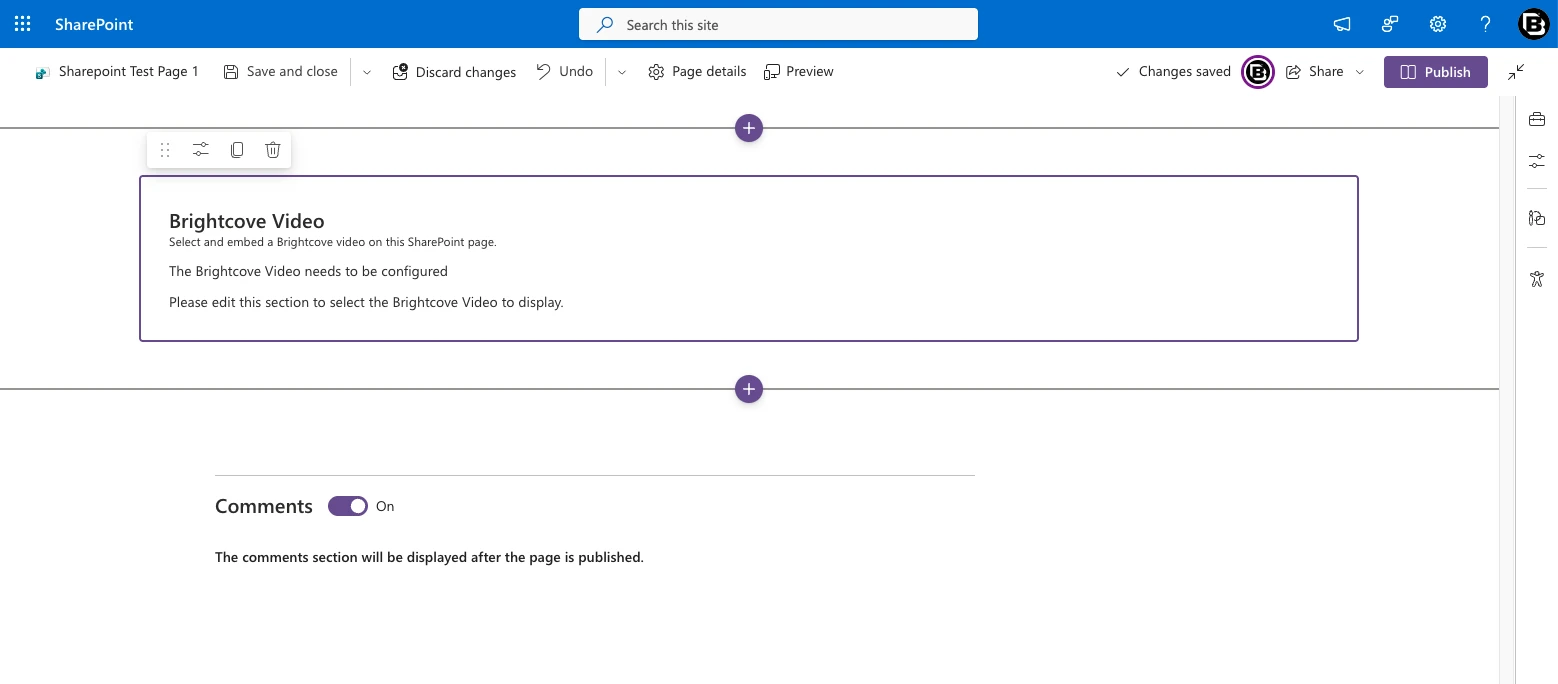
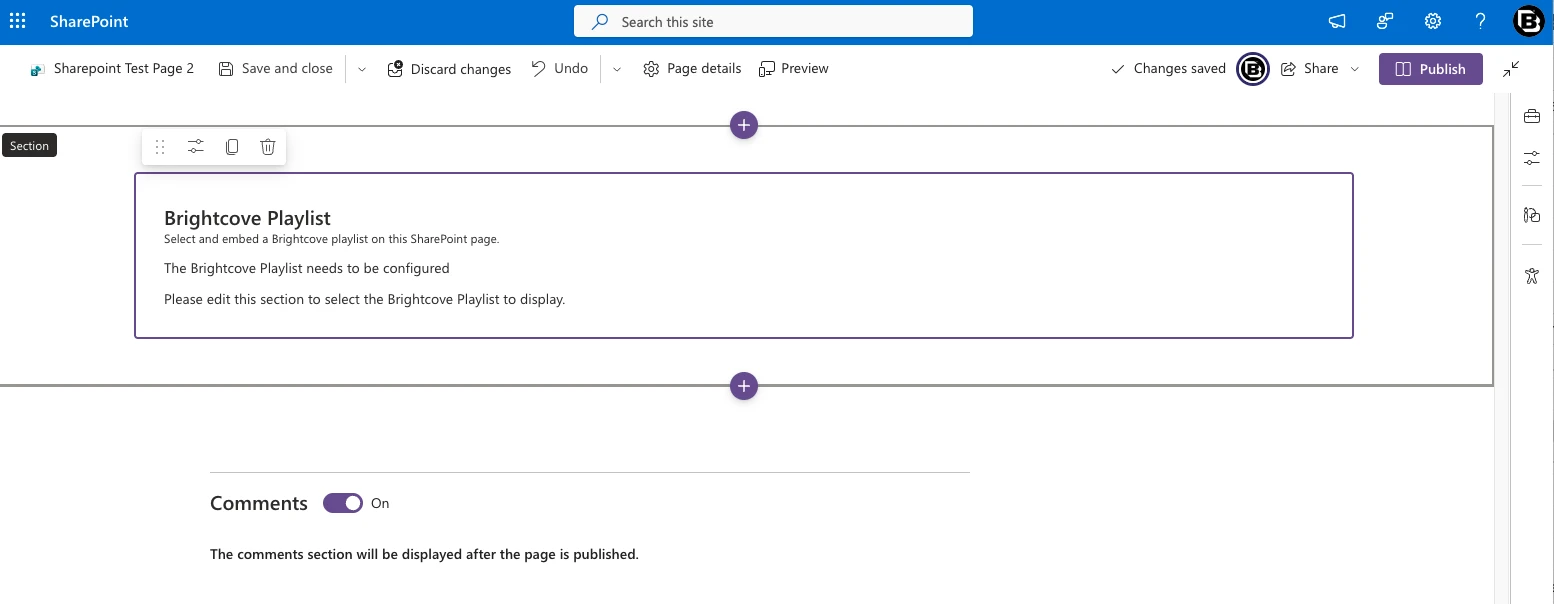
- The web part will appear on the page with a prompt to configure it.
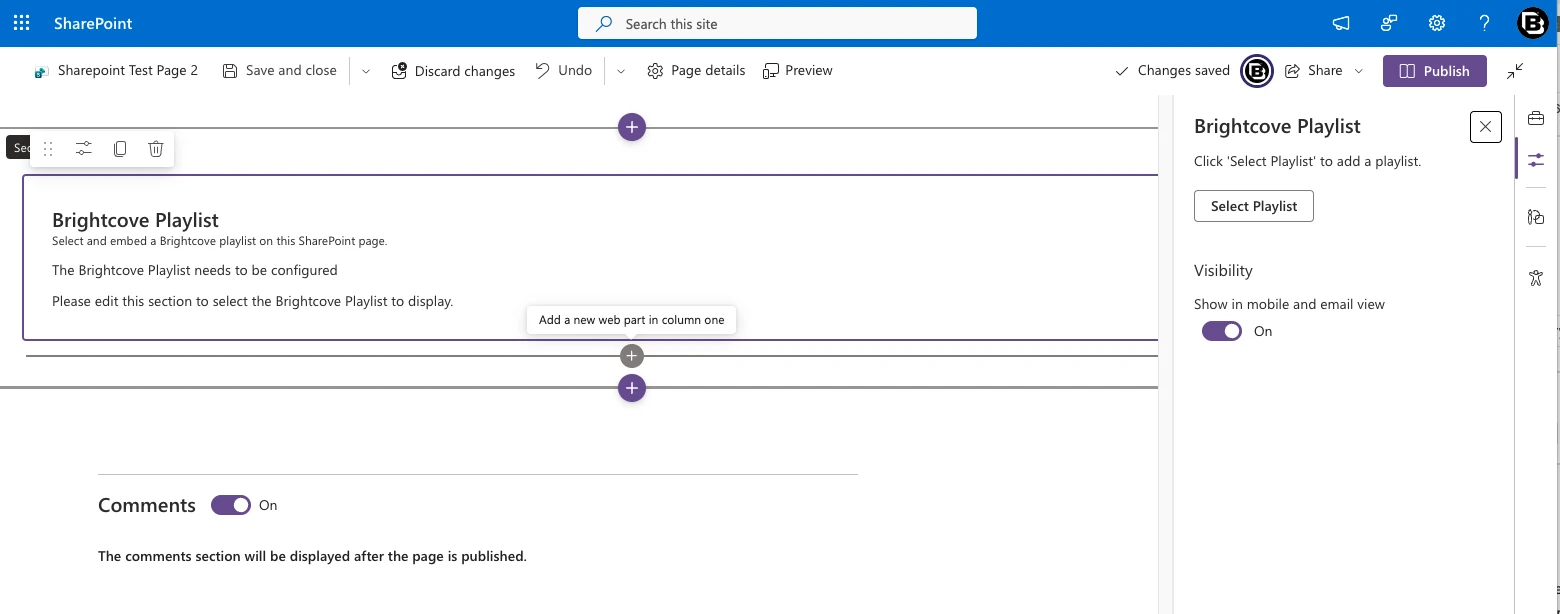
- Click the web part or open its property pane (pencil icon) to begin configuration.
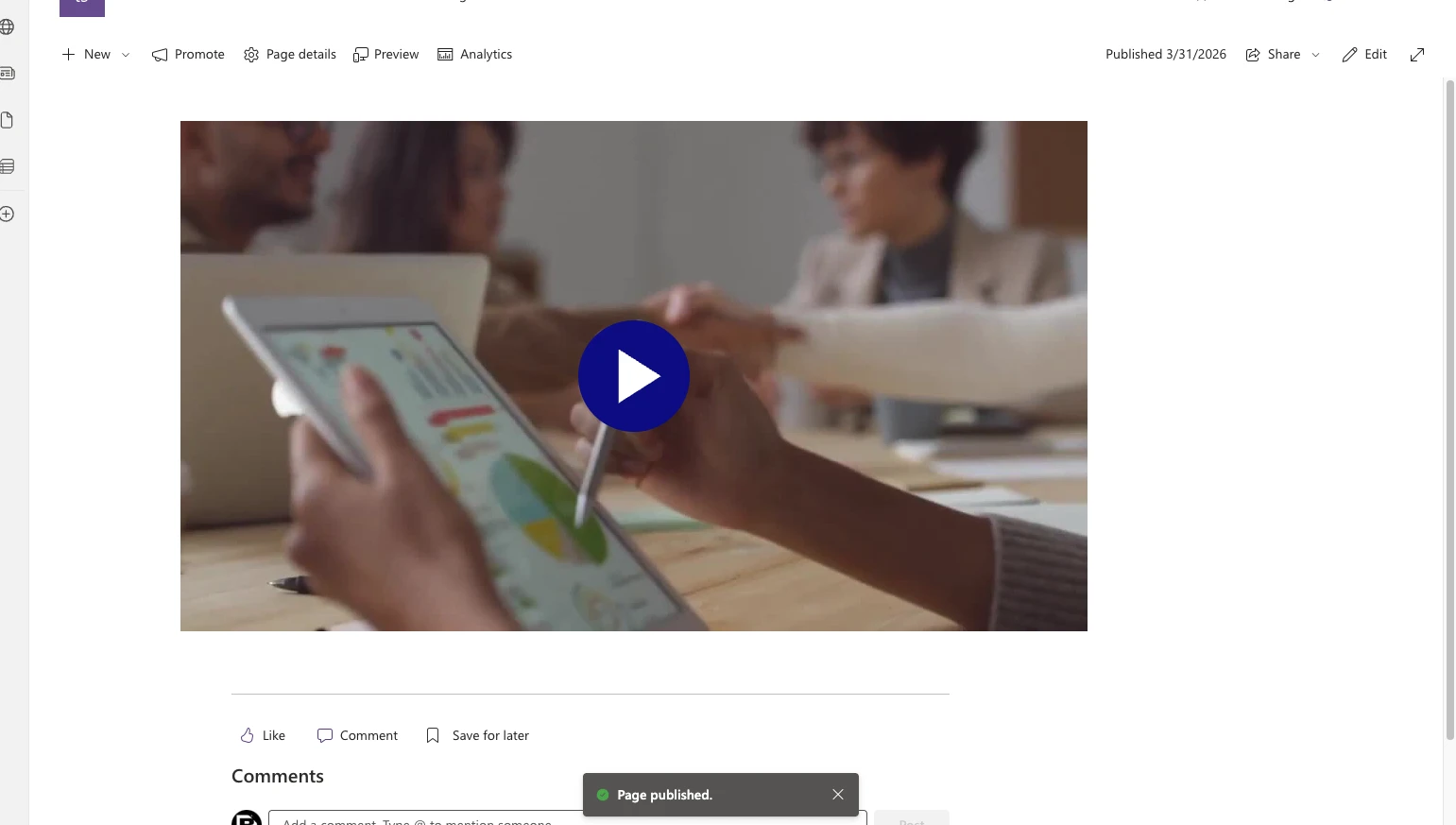
- After configuring, Publish or Republish the page to make the embedded content visible to viewers.
5.2 Brightcove Video web part
Embeds a single Brightcove video on the page.
Getting started:
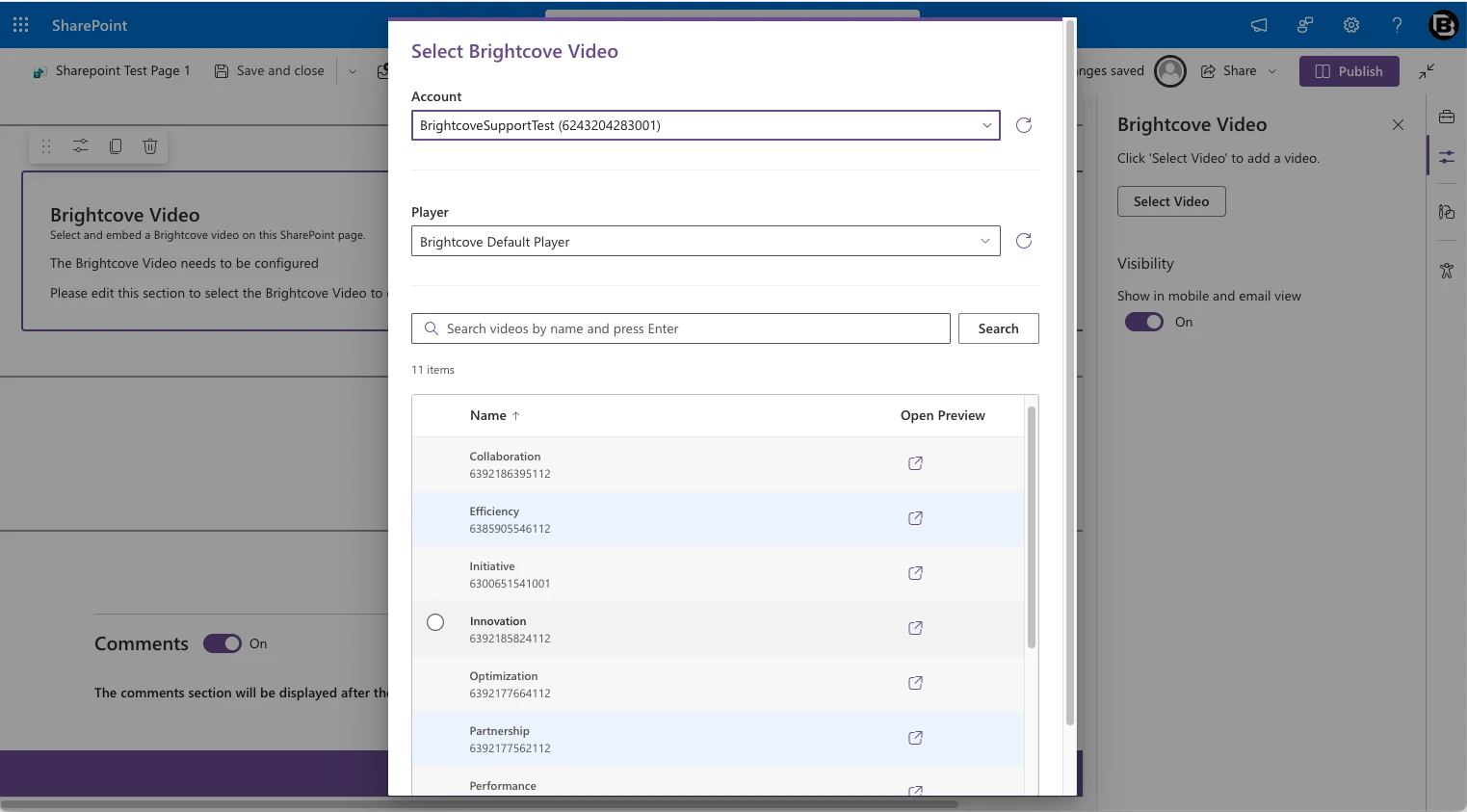
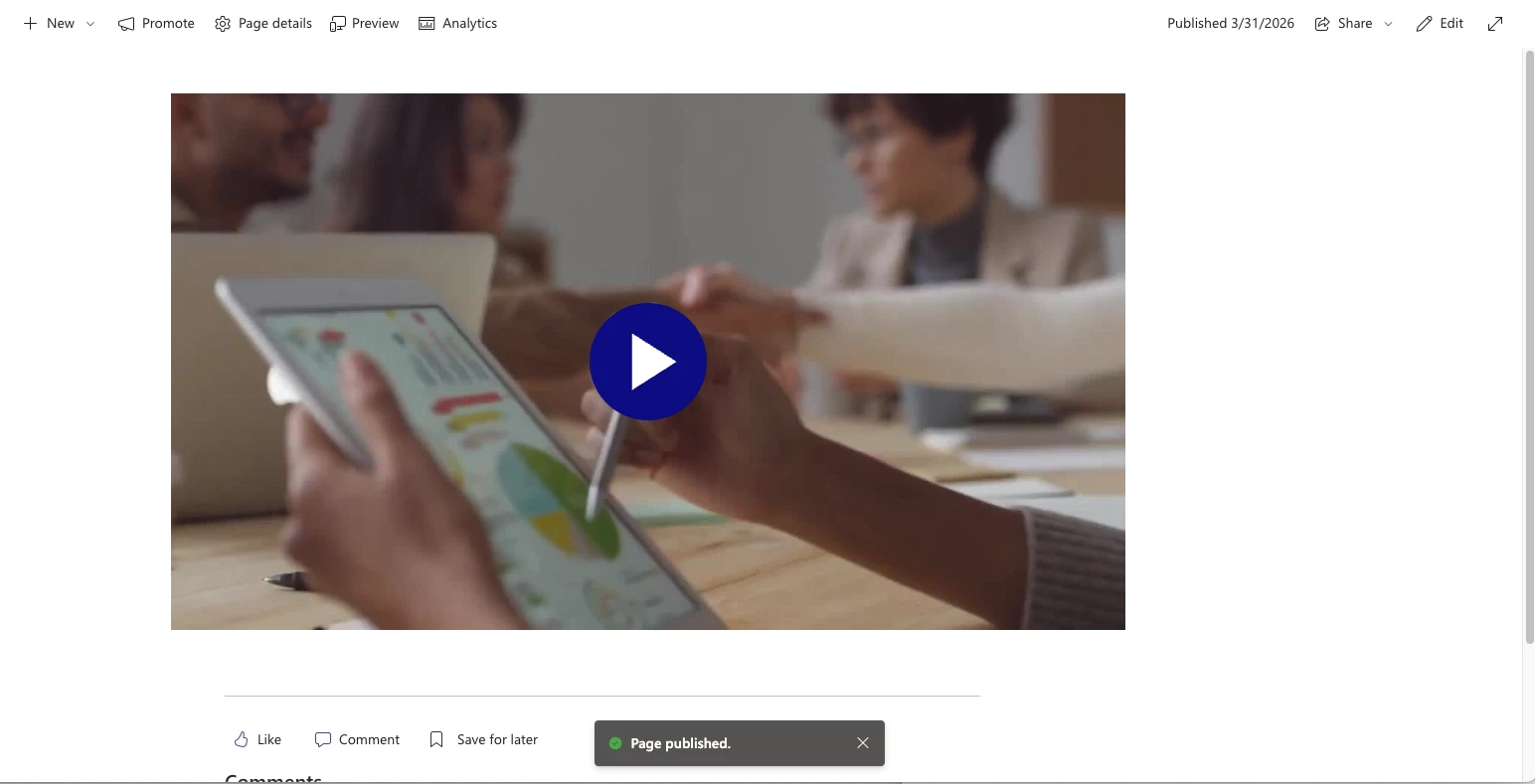
- Add the web part to a page. Before a video is selected, the web part displays a placeholder message: "The Brightcove Video needs to be configured. Please edit this section to select the Brightcove Video to display."
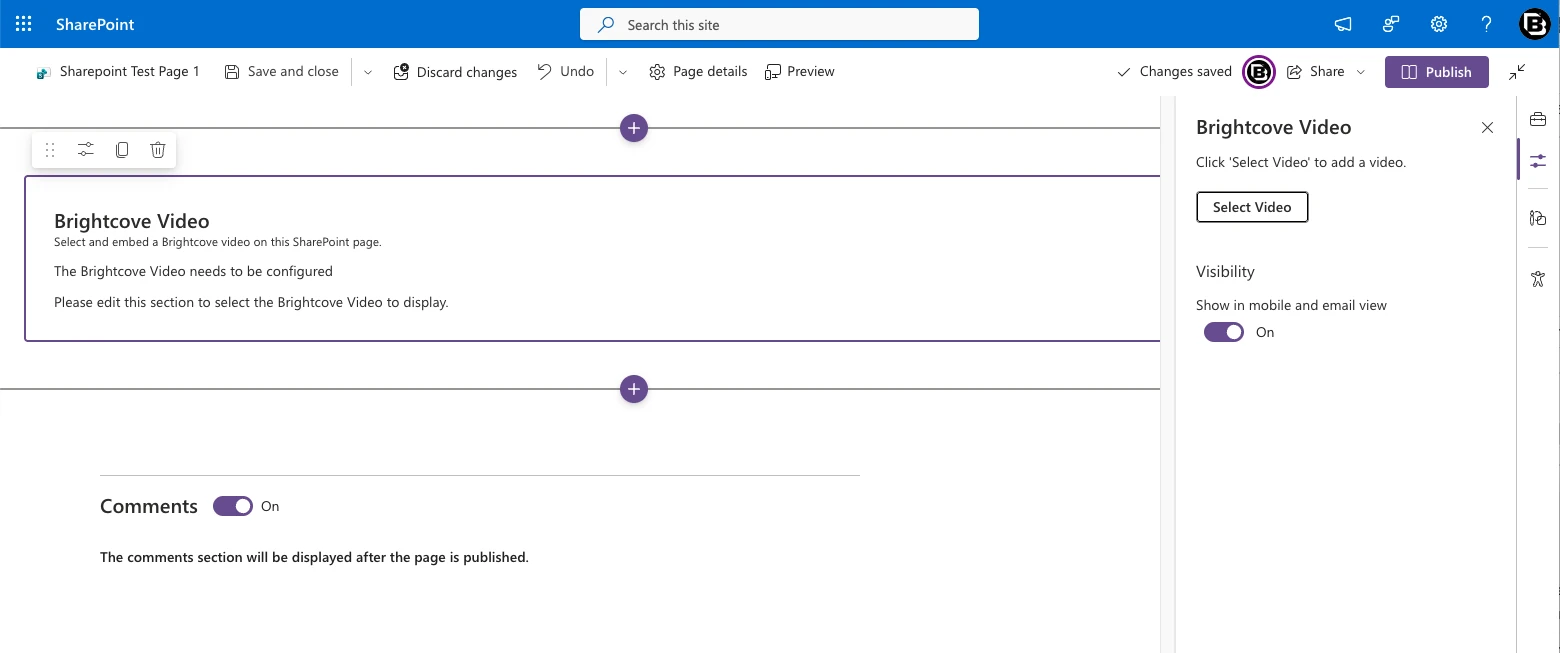
- Open the property pane (click the pencil icon or click the web part). You'll see a Select Video button and a Visibility toggle.
- Click Select Video to open the content selector dialog.
- In the dialog:
- Account: Choose which Brightcove account to browse.
- Player: Select the player to use for rendering (defaults to Brightcove Default Player).
- Folder: Optionally filter the video list by a Video Cloud folder (defaults to All videos).
- Search: Type a video name or ID and press Enter. Results match the name, ID, reference ID, description, and tags on whole words. Clear the box to return to the full list.
- Sort: Click the Name, Created, or Modified column header to sort the list; click again to reverse. Sorting is unavailable while a folder is selected.
- Scroll to see more videos. The list loads additional rows automatically until every matching video is shown, and the # column shows each row's position.
- Select a video from the list. Click the Open Preview icon next to any video to preview it in a new tab before selecting.
- Click Insert to confirm your selection.
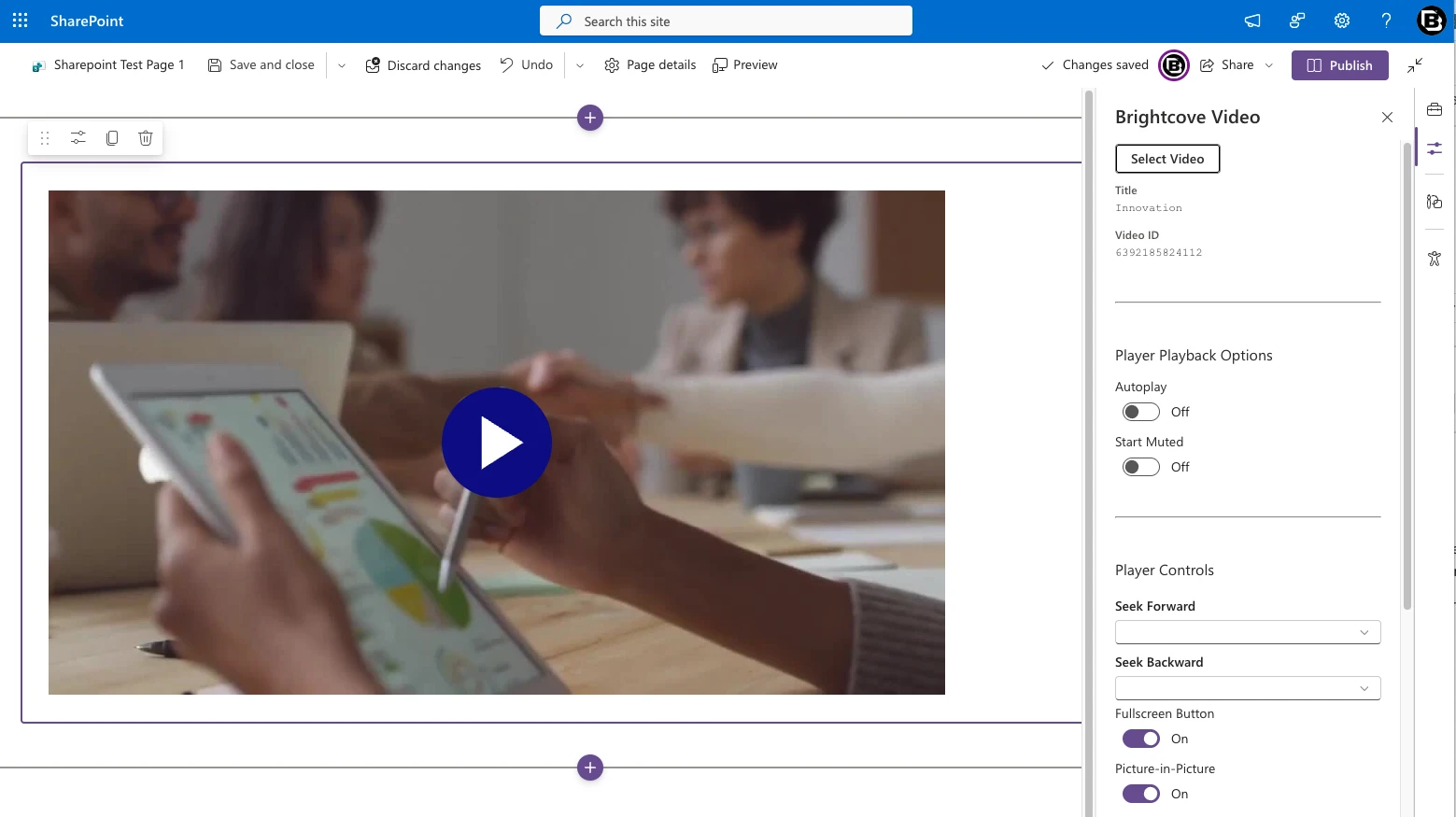
Once a video is selected, the web part renders the video on the page and the property pane displays the Title and Video ID along with four configuration groups. While the player loads, the web part shows the video's poster image at the final player size so the page layout does not shift.
Visibility
| Option | Description | Default |
|---|---|---|
| Show in mobile and email view | Controls whether the web part appears in mobile layouts and in SharePoint email digests (e.g., when a News post is sent via email). When included in an email, a static placeholder is rendered; the video does not play inline in the email itself. Recipients click through to the SharePoint page to watch the video. | On |
Player Playback Options
| Option | Description | Default |
|---|---|---|
| Autoplay | Start playing the video automatically when the page loads. Note: browsers may block autoplay when sound is enabled; the player will mute automatically if blocked. | Off |
| Start Muted | Begin playback with the volume muted. | Off |
Player Controls
| Option | Description | Default |
|---|---|---|
| Seek Forward | Adds a skip-forward button to the control bar. Options: Off, 5 seconds, 10 seconds, 30 seconds. | Off |
| Seek Backward | Adds a skip-backward button to the control bar. Options: Off, 5 seconds, 10 seconds, 30 seconds. | Off |
| Fullscreen Button | Show or hide the fullscreen toggle in the player controls. | On |
| Picture-in-Picture | Show or hide the picture-in-picture button, allowing viewers to pop the video out into a floating mini-player. | On |
| Control Bar Size | Adjust the size of the player control bar. Options: Compact, Normal, Large. | Compact |
Player Size Options
| Option | Description | Default |
|---|---|---|
| Player Sizing | Responsive: The player fills the available width and maintains the chosen aspect ratio. Fixed: The player renders at the exact width and height you specify. | Responsive |
| Aspect Ratio | The proportional relationship between width and height. Options: 1:1, 3:2, 4:3, 16:9, 21:9, 9:16, Custom. | 16:9 |
| Max Width (responsive) / Width (fixed) | In responsive mode, sets the maximum width the player will expand to. In fixed mode, sets the exact width. | 800 |
| Height | Only editable in fixed mode with a custom aspect ratio. Otherwise calculated automatically from the width and aspect ratio. | 540 |
5.3 Brightcove Playlist web part
Embeds a Brightcove playlist on the page, showing multiple videos with a playlist layout.
Getting started:
- Open the property pane and click Select Playlist.
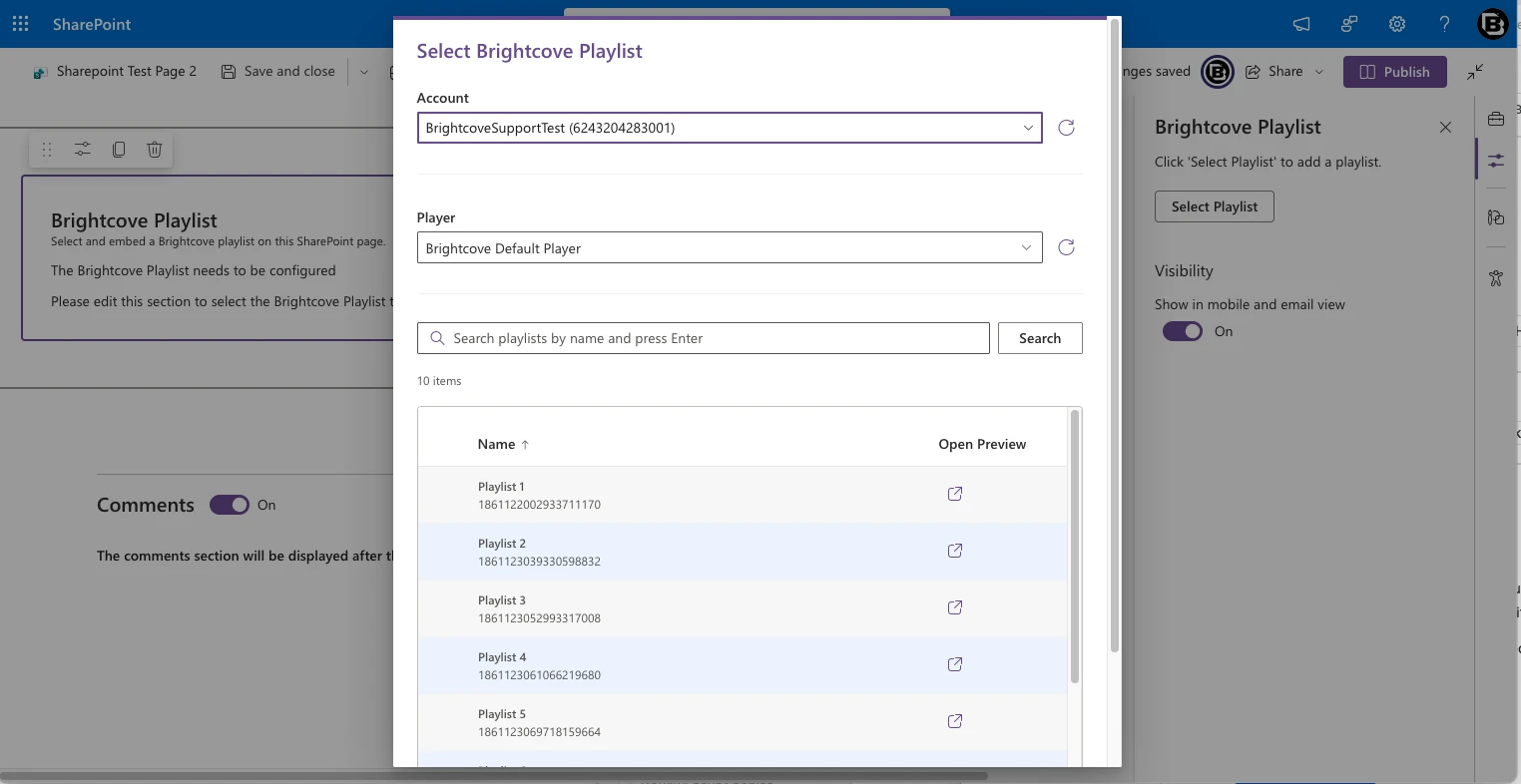
- In the content selector dialog, choose a Brightcove Account, then browse or search for a playlist. To search, type all or part of the playlist name, or its ID, and press Enter. Select a Player to use for rendering.
- Click Insert to confirm your selection.
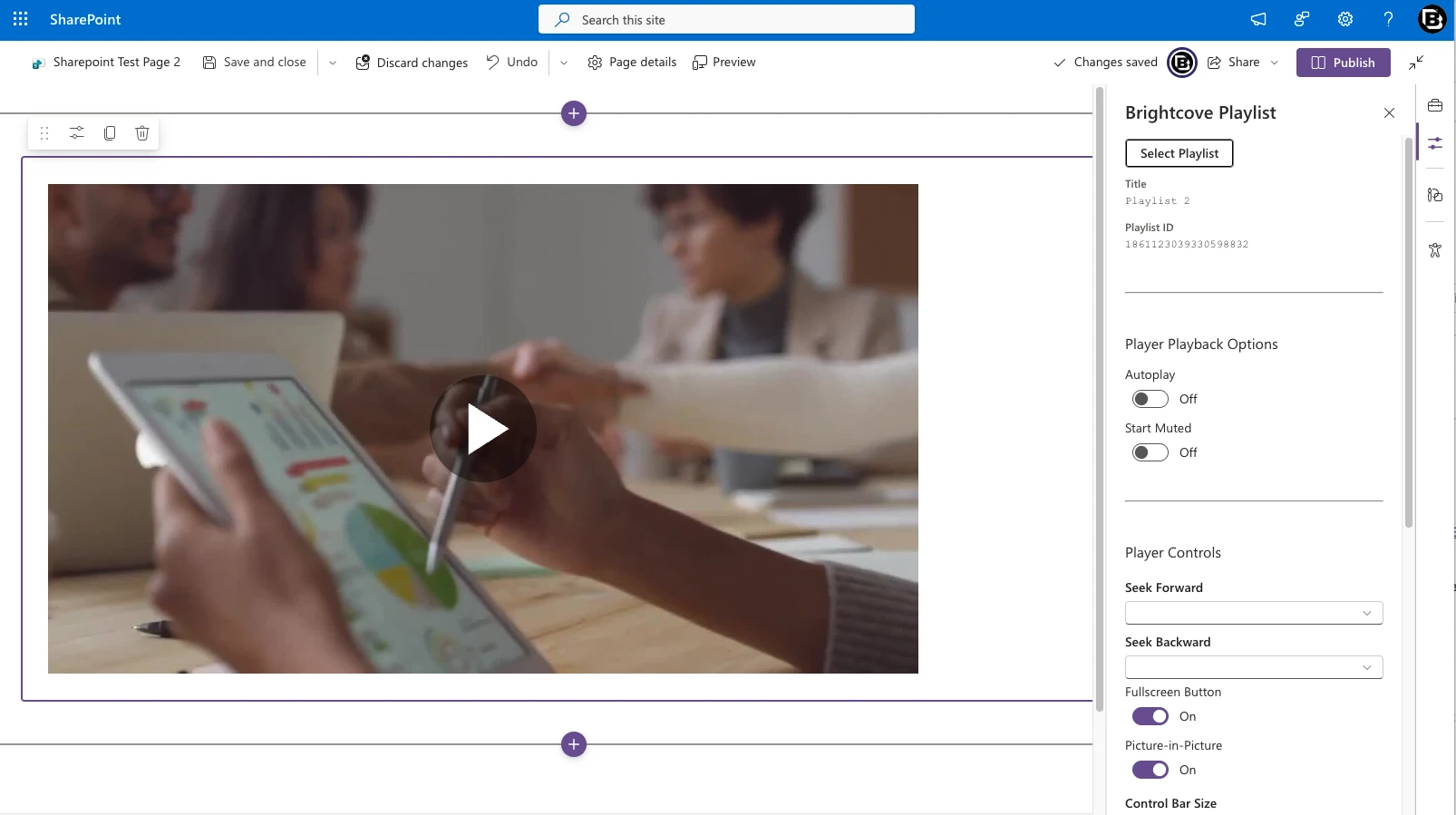
Once a playlist is selected, the property pane displays the same Player Playback Options, Player Controls, and Player Size Options groups as the Video web part, with identical options and defaults (see Section 5.2), plus a fourth group, Playlist UI, that controls how viewers move through the playlist.
Playlist UI
| Option | Description | Default |
|---|---|---|
| Show Picker | Shows the playlist's videos, with thumbnails, next to or below the player. Viewers click an item to jump to that video, and the current item is highlighted as the playlist advances. | On |
| Picker Layout | Auto (responsive) shows the picker as a sidebar when the web part is at least 640 pixels wide and below the player when it is narrower. Vertical (sidebar) and Horizontal (below player) force one layout. Available only when Show Picker is on. | Auto |
| Show Descriptions | Shows each video's description in the picker in addition to its thumbnail and name. Available only when Show Picker is on. | Off |
| Show Up-Next Overlay | During the last 10 seconds of a video, shows an Up next in N s card in the lower-right corner of the player with the next video's thumbnail and title. Not shown on the last video when Repeat Playlist is off. | On |
| Repeat Playlist | Returns to the first video after the last one finishes. | On |
| Auto-Advance Delay | How long the player waits after a video ends before starting the next one: Short (1 second), Medium (3 seconds), or Long (5 seconds). | Short |
The playlist advances to the next video automatically when the current one ends. The Up next overlay and the horizontal picker are aligned to the player's actual width, so they stay attached to the player even when the page section is wider than the configured Max Width.
5.4 Brightcove Experience web part
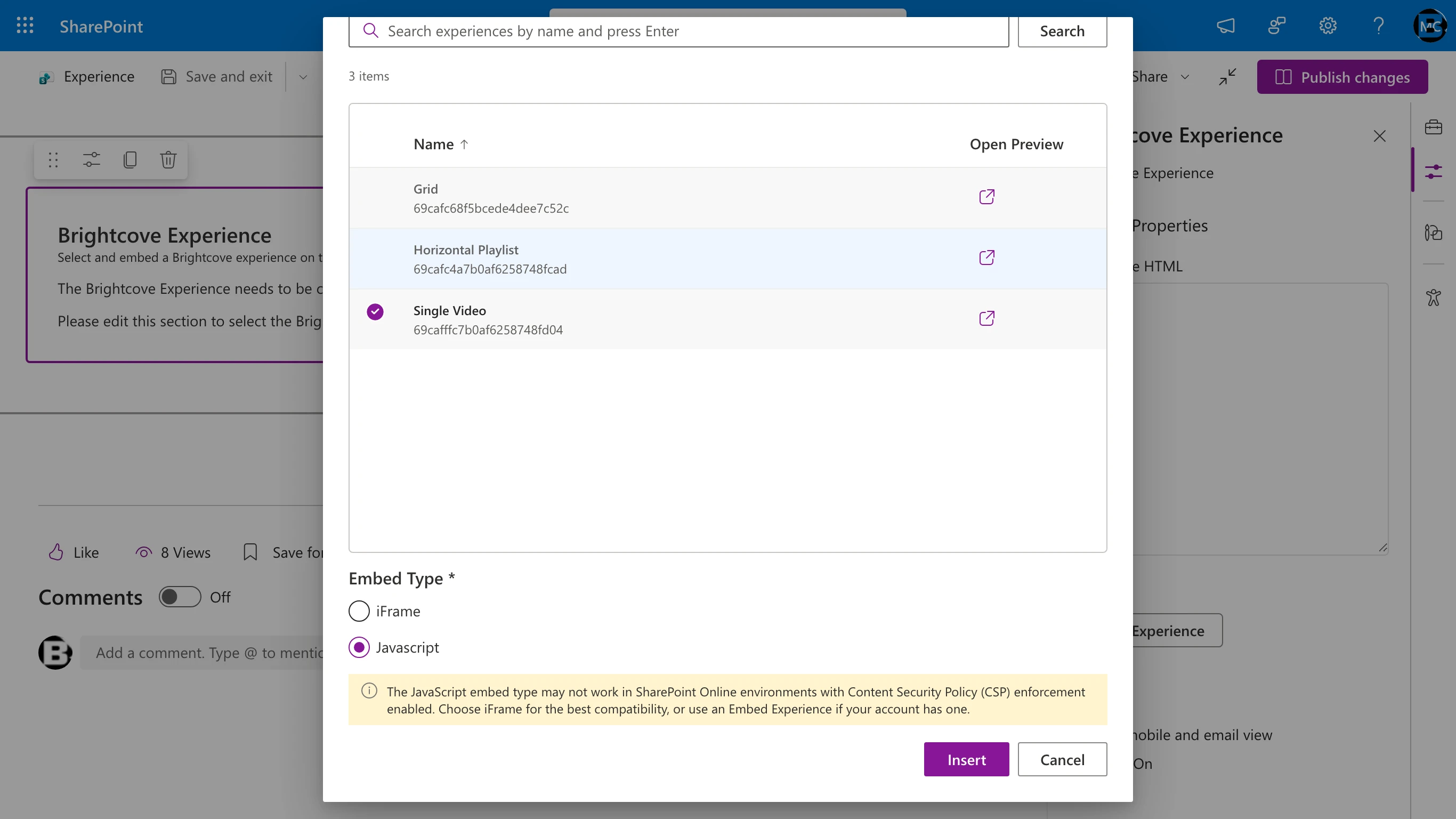
Embeds a Brightcove In-Page Experience (IPX) on the page. The connector supports two types of experiences, accessed via separate tabs in the content selector dialog:
- Experiences: Legacy IPX experiences created in the Gallery module of Video Cloud Studio (Grid, Horizontal Playlist, Single Video, and other classic templates).
- Embed Experiences: New-generation experiences built with Brightcove's Embed Builder, hosted on
*.ipx.bcvp0rtal.com. These are the long-term replacement for the legacy templates.
Getting started:
- Add the web part to a page. Before an experience is selected, the web part displays a placeholder message: "The Brightcove Experience needs to be configured. Please edit this section to select the Brightcove Experience to display."
- Open the property pane (click the pencil icon or click the web part). You'll see a Custom Properties section with an empty Experience HTML text area, a Select Experience button, and a Visibility toggle.
- Click Select Experience to open the content selector dialog.
- Choose which type of experience you want to embed by selecting the appropriate tab:
- Experiences tab: for legacy IPX experiences. You'll also choose an Embed Type (iFrame or Javascript) at the bottom of the dialog.
- Embed Experiences tab: for new Embed Builder experiences. No Embed Type choice is needed; Embed Builder always renders via iframe + helper script.
- In the dialog:
- Account: Choose which Brightcove account to browse.
- Search: Type all or part of an experience name, or its ID, and press Enter to filter the list.
- Select an experience from the list. Click the Open Preview icon next to any experience to preview it in a new tab.
- Click Insert to confirm your selection.
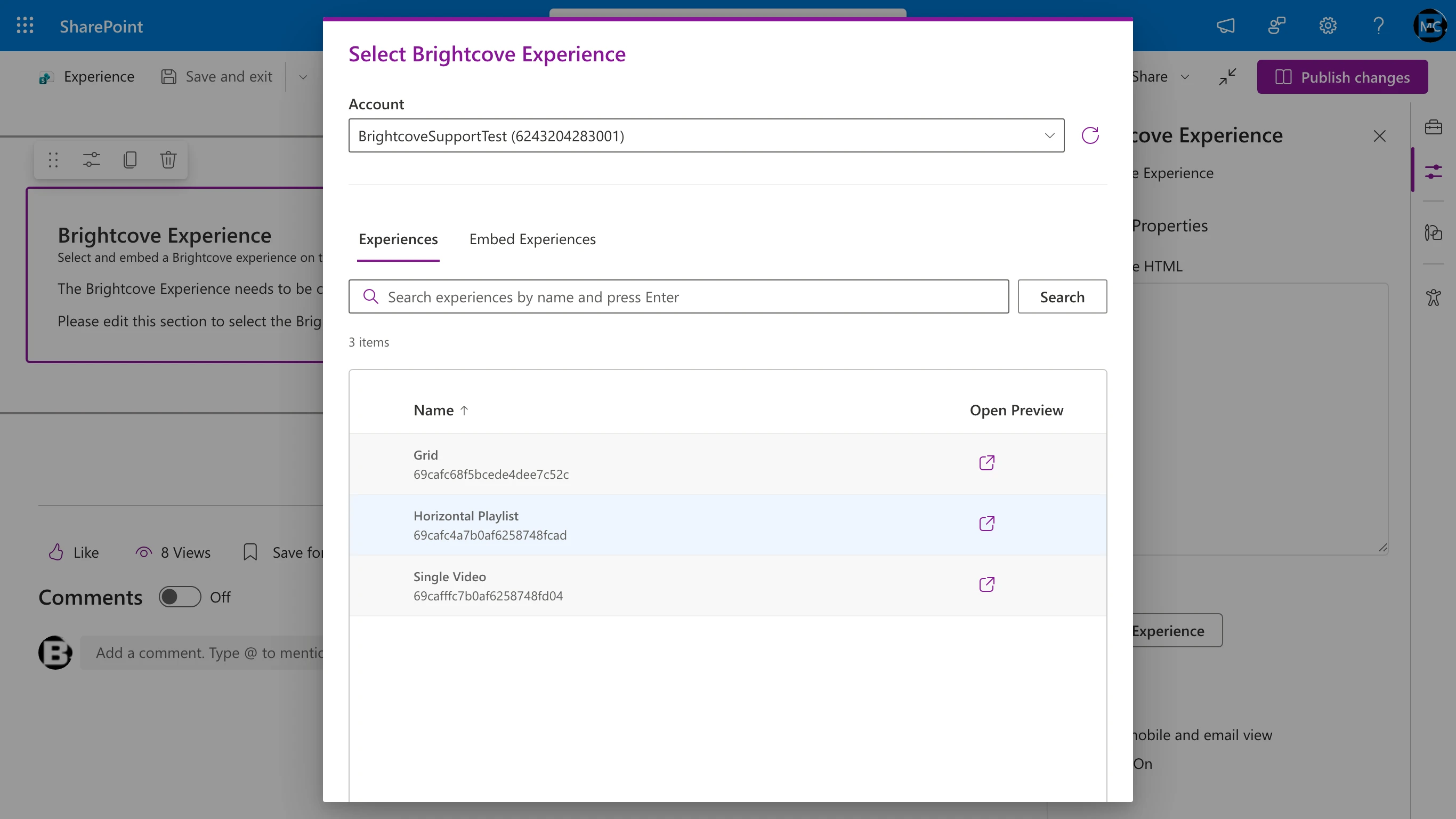
Once an experience is selected, the web part renders the experience on the page. The property pane shows the generated embed code in the Experience HTML text area (read-only). Use the copy icon below the text area to copy the embed code to your clipboard.
Unlike the Video and Playlist web parts, the Experience web part does not offer playback, control, or sizing options in the property pane. The experience layout, player configuration, and sizing are all controlled within the experience itself via Brightcove Video Cloud Studio's Gallery module.
Sizing of legacy experiences: When a legacy experience is embedded with the iFrame embed type, the web part sizes the iframe from the width and height stored on the experience. If the experience has no stored dimensions, the iframe fills the width of the web part at a 16:9 aspect ratio. Two limitations follow from the iframe embed: content taller than 16:9 (for example a grid with many rows) scrolls inside the iframe rather than extending the page, and clicking a video opens the experience's own video view inside the iframe (with an All Videos link back to the grid) and plays inline. The experience's lightbox setting does not apply inside an iframe on another domain, so no lightbox opens over the SharePoint page. Pages created with connector versions before 1.2.0.0 that contain an unsized experience iframe are corrected automatically when they render; you do not need to re-insert the experience.
Visibility
The property pane includes the same Show in mobile and email view toggle as the Video and Playlist web parts. See Section 5.2 for details on how this works.
Embed Experiences (Embed Builder)
The Embed Experiences tab lists experiences built with Brightcove's Embed Builder. These render via an iframe plus a small helper script (in-page-manager.min.js), both served from *.ipx.bcvp0rtal.com. When a viewer clicks a video, the helper script opens a popup player that is loaded from players.brightcove.net. Only published Embed Builder sites appear in this list.
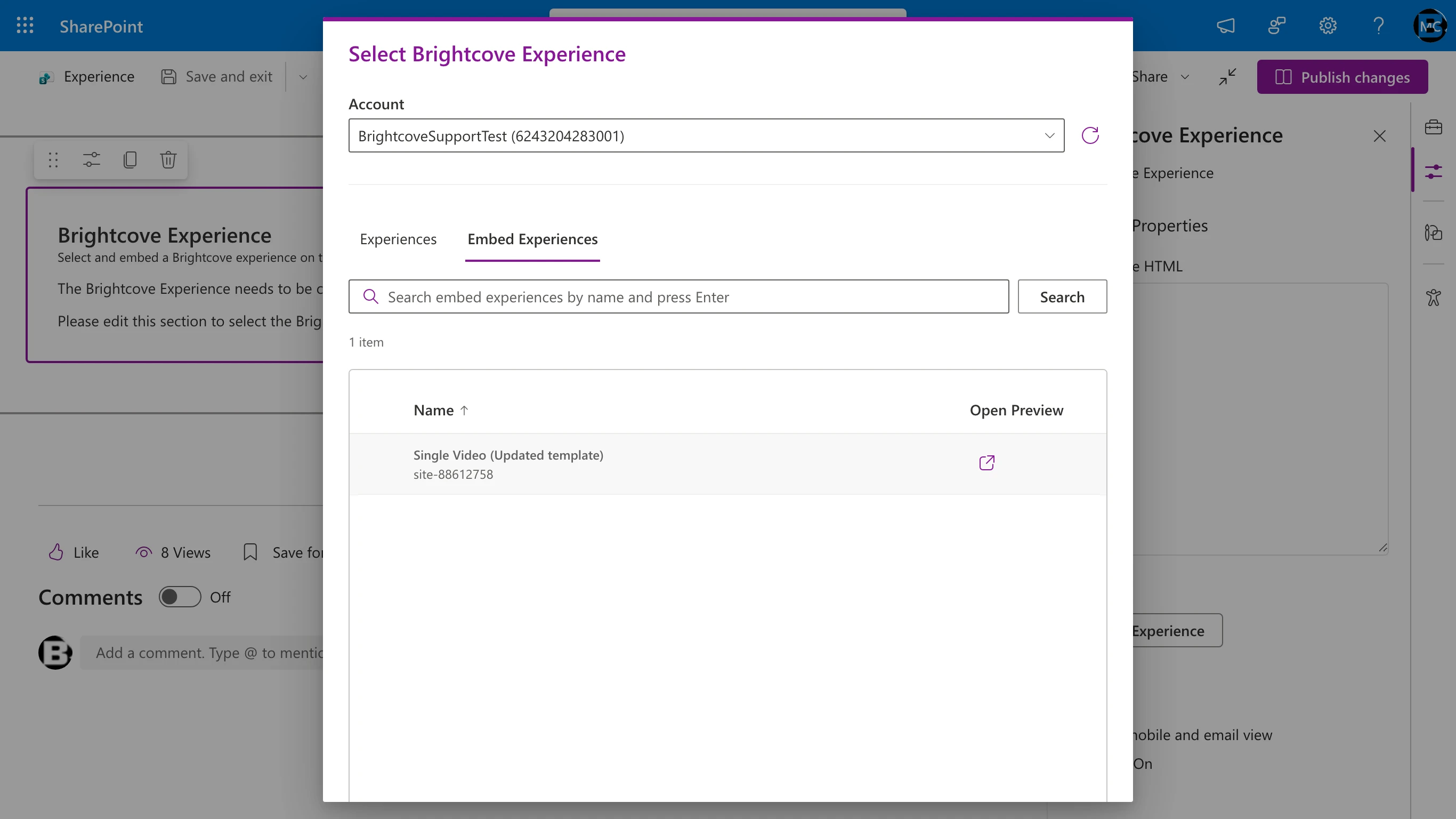
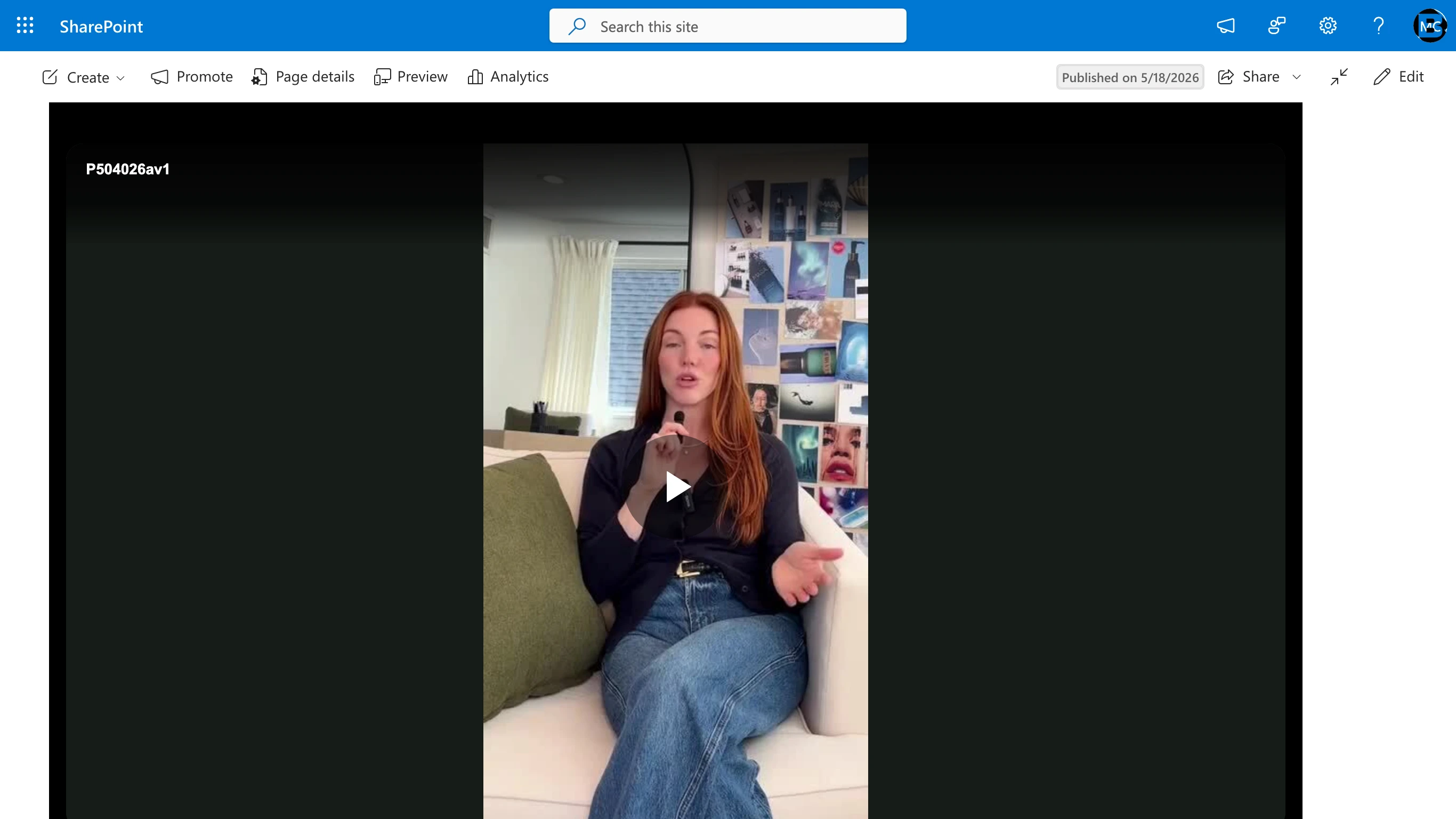
Embed Experiences do not require an Embed Type choice; they always render via the same iframe + helper-script pattern. Once inserted, the experience renders on the published page like this:
Embed types: iFrame vs. JavaScript (Experiences tab only)
The Embed Type radio at the bottom of the selector dialog applies only to the Experiences tab (legacy IPX). It determines how the legacy experience is embedded on the SharePoint page. Embed Experiences (the new Embed Builder templates) always render via iframe + helper script and do not expose this choice.
iFrame embed
The experience is rendered inside an HTML <iframe> element.
- This is the default and recommended choice for most deployments.
- Works in most SharePoint configurations without additional setup.
- Content is sandboxed inside the iframe.
JavaScript embed
The experience is rendered directly into the SharePoint page by the Brightcove experience script (live.js).
- Required when you use Brightcove domain restrictions (also called "Content Security" in the player settings in Studio) to restrict playback to specific domains. Since the experience runs directly on the SharePoint page, the restriction domain should be your SharePoint tenant URL (e.g.,
*.sharepoint.com). - Requires that your SharePoint admin has added
https://players.brightcove.net/as a trusted script source in the SharePoint Admin Center (SharePoint Admin Center → Advanced → Script Sources). See the Installation Guide, Section 5.1. On tenants that enforce CSP this is not sufficient; see the note below.
Choosing the right embed type:
| Scenario | Recommended Embed Type |
|---|---|
| Standard embedding, no domain restrictions | iFrame |
| Domain-restricted content (Brightcove Content Security) | JavaScript (tenants without CSP enforcement only) |
| Embedding in Outlook / email-visible pages | iFrame (JavaScript embeds are stripped from emails) |
| Simplest setup, fewest dependencies | iFrame |
6. Working with multiple Brightcove accounts
The connector supports connecting multiple Brightcove Video Cloud accounts to a single SharePoint site. This is useful for organizations that manage separate accounts for different brands, departments, or regions.
6.1 How it works
- Each Brightcove account is added separately in the Connector Settings page with its own API credentials.
- When adding a web part to a page, the author selects which account to browse content from using the Brightcove Account dropdown in the property pane.
- Each web part instance is tied to a single account. To show content from different accounts on the same page, add multiple web parts and configure each with the appropriate account.
6.2 Account credential requirements
- Each set of API credentials (Client ID + Client Secret) should be linked to a single Brightcove account. See the Installation Guide, Section 3 for details.
- If you use the same Client ID / Client Secret across multiple accounts, you will need to add a separate account entry in Connector Settings for each Account ID you want to access.
7. Tips and best practices
For site admins
- Test connection regularly: After Azure maintenance, credential rotation, or infrastructure changes, use the "Test Connection" button in Connector Settings to verify the proxy is still healthy.
- Rotate credentials proactively: When you rotate Brightcove API credentials in Video Cloud Studio, update the corresponding account entry in Connector Settings immediately to avoid service interruptions.
- Use descriptive account names: When managing multiple accounts, use clear names (e.g.,
marketing-prod,training-emea) so content authors can easily identify the correct account.
For content authors
- Publish your page: Embedded Brightcove content may not play correctly in the SharePoint editor. Always publish (or republish) the page to see the final rendering.
- Check player compatibility: Ensure the player you select in the web part property pane is appropriate for the content type. Playlist players are needed for playlists; single-video players won't show playlist navigation.
- Use experiences for rich layouts: If you need more than a simple embedded video (e.g., a video gallery, featured video grid, or live event player), create an In-Page Experience in Brightcove Studio and embed it using the Experience web part.
- Draft experiences won't appear: Only published experiences show up in the Experience web part selector. If you don't see your experience, check that it's been published in Video Cloud Studio.
For content managers
- Upload from SharePoint: Use the Content Management page to upload and edit videos without switching to Video Cloud Studio. Changes made in SharePoint are immediately reflected in Video Cloud.
- Deactivate vs. delete: Setting a video to Inactive prevents playback but preserves the video in your account. To delete videos permanently, select them on the Videos tab and click Delete.
- Keep folders current: Use the Folder picker in the Edit Video dialog to move a video between folders or take it out of a folder. The change is reflected in Video Cloud Studio immediately.
- Tags help discovery: Use consistent tagging when uploading videos. Tags are searchable in Video Cloud and help with playlist management.
8. Troubleshooting
Web part shows "needs to be configured"
This is the default state when a web part is first added. Open the property pane, select a Brightcove account, choose your content, and save.
No accounts appear in the web part dropdown
- Verify that at least one account has been added and saved in the Connector Settings page (Section 3.2).
- Verify the proxy connection test passes (Section 3.1).
- If you recently added the app to the site, try refreshing the page.
Video or playlist doesn't play on the published page
- Check that the video is Active in Brightcove (not deactivated or scheduled for a future date).
- If using domain restrictions in Brightcove, ensure your SharePoint tenant URL is in the allowed domains list.
- Make sure you have published the page; content may not render correctly in the SharePoint editor.
Blank area where the experience should be
- This typically indicates a JavaScript embed on the Experience web part. On tenants that enforce CSP, the JavaScript embed type does not render even when
https://players.brightcove.net/is a trusted script source, because the experience script inserts an inline script that CSP blocks. On tenants without CSP enforcement, ask your SharePoint admin to addhttps://players.brightcove.net/in SharePoint Admin Center → Advanced → Script Sources. - Re-select the experience using the iFrame embed type. This is the supported choice on tenants that enforce CSP.
Embed Builder popup opens but stays empty
- The experience itself displays, but clicking a video opens an empty overlay. In connector versions before 1.2.0.0 this happened on every SharePoint page: the page's script loader captured the popup player. Upgrade to 1.2.0.0 or later.
- If the popup is still empty after upgrading, the popup player from
https://players.brightcove.net/could not be loaded. Confirm thathttps://*.ipx.bcvp0rtal.com/,https://players.brightcove.net/, andhttps://cdn.jsdelivr.net/are trusted script sources (see the Installation Guide, Section 5.1), and that no network proxy or ad blocker filters these hosts. - Open the browser console (F12 → Console) and click a video again. The web part logs a warning that describes what could not be loaded.
Legacy experience renders very small or as a single column
- This happened in connector versions before 1.2.0.0 when an experience embedded as an iframe had no stored dimensions, so the browser used its default 300 by 150 pixel frame. Version 1.2.0.0 sizes these iframes to the full web part width at 16:9 and repairs existing pages automatically. Ask your administrator to upgrade, then reload the page.
"Connection failed" in Connector Settings
- Click Copy Support Bundle and share the diagnostic output with your Azure admin.
- Common causes: Function App is stopped or not deployed, CORS is misconfigured, API permission was not approved, or the App Registration is misconfigured.
- See the Installation Guide, Section 9 for detailed troubleshooting steps.
Video search returns nothing for a partial word
- Video search matches whole words in the name, ID, reference ID, description, and tags. Exxon does not match ExxonMobil; type the complete word instead.
- Playlist and experience search match partial names, so this applies to videos only.
Upload fails in Content Management
- Verify the Brightcove API credentials have the required scopes: Dynamic Ingest: Create and Dynamic Ingest: Push Files. See the Installation Guide, Section 3.3.
- Only video files are accepted (MP4, MOV, M4V, MKV, WMV, AVI, MPG, MPEG, FLV, and WebM). Files of other types are rejected before upload with a message that names the file. Also check that the file format is supported by Brightcove Video Cloud.
- Check the proxy connection; if the proxy is unreachable, all API operations will fail.
9. Frequently asked questions
Q: Do I need to re-embed all my existing Brightcove content from the legacy connector?
A: The legacy Add-In web parts and the new SPFx web parts are completely separate, so you will need to add the new Brightcove web parts and select your content in them. Whether existing content previously placed by the legacy connector continues to render after Microsoft retires the Add-In framework on April 2, 2026 is not something Brightcove can guarantee; this depends on how Microsoft handles previously embedded content. We recommend proactively re-embedding your content using the new web parts before the retirement date. For questions about the Add-In retirement's impact on existing page content, consult Microsoft's SharePoint Add-In retirement documentation or your Microsoft representative.
Q: Can I use the connector in Microsoft Teams or Viva?
A: Not in this release. Teams and Viva Connections support are planned for a future release. The connector currently supports SharePoint Online only.
Q: Can I use the connector on SharePoint on-premises?
A: No. The connector requires SharePoint Online (M365) and an Azure subscription. SharePoint Server (on-premises) is not supported.
Q: Does the connector work with Brightcove's content security / domain restrictions?
A: Yes. For all content types, you need to add your SharePoint tenant domain (e.g., *.sharepoint.com) to the player's Allowed Domains list in Video Cloud Studio (Players → Content Restriction → Domain restrictions). The Video and Playlist web parts will then work seamlessly with no additional SharePoint-side configuration. For the Experience web part:
- For legacy IPX experiences (the Experiences tab), you must use the JavaScript embed type and ensure your SharePoint admin has added
https://players.brightcove.net/as a trusted script source. This combination is not available on tenants that enforce CSP, where the JavaScript embed type does not render; see Section 5.4. - For Embed Builder experiences (the Embed Experiences tab), your SharePoint admin must add
https://*.ipx.bcvp0rtal.com/,https://players.brightcove.net/, andhttps://cdn.jsdelivr.net/as trusted script sources.
See Section 5.4 for details.
Q: Can I delete videos from SharePoint?
A: Yes, starting with version 1.2.0.0. Open the Content Management page, switch to the Videos tab, select the videos, and click Delete. Deletion is permanent. See Section 4.3.4.
Q: How many Brightcove accounts can I connect?
A: There is no hard limit. You can add as many Brightcove accounts as needed in the Connector Settings page. Each requires its own set of API credentials.
Q: Are my Brightcove API credentials secure?
A: Yes. API credentials are stored as encrypted secrets in Azure Key Vault. They are never sent to or exposed in the SharePoint client (browser). All Brightcove API calls are made server-side through the Proxy API, which authenticates requests using Microsoft Entra ID OAuth tokens.
Q: What happens if my Azure admin rotates the Key Vault or changes the Function App URL?
A: You'll need to update the Proxy API Base URL and/or Proxy API Resource in the Connector Settings page. Use the Test Connection button to verify the new configuration.
Q: Can multiple sites use the same Azure Function App?
A: Yes. One Function App + Key Vault deployment can serve multiple SharePoint sites. Each site adds the app independently and configures its own Connector Settings, but they all point to the same proxy. Account credentials in the Key Vault are scoped by tenant ID, so credentials are shared across sites within the same tenant.
10. Getting help
If you encounter issues not covered in this guide or the Installation Guide:
- Use the Copy Support Bundle feature in Connector Settings to capture diagnostic information.
- Contact your Brightcove Account Manager or CSM for migration and deployment assistance.
- Open a support case at Brightcove Support and include the support bundle output along with a description of the issue.